Documentation
Using Switchyard
Everything the app does, where to find it, and the keys that reach it. The app's Help button (the in the top bar, or F1) opens this page.
Getting started
Switchyard runs the git on your PATH for everything it does, so your
configuration, credential helpers, SSH keys, commit signing and hooks all behave exactly
as they do in a terminal. Switchyard needs Git 2.31 or newer. On a computer with no Git
installed at all, it uses the copy of Git for Windows' MinGit that comes with it, and
Settings says which Git is in use. With an older Git, the window says so, with
Get Git for Windows and Check again.
- Open a repository — Open at the top right, or Ctrl+O, and pick any folder inside a Git checkout.
- Or clone one — Clone repository… on the welcome screen or in the repository menu, or Ctrl+Shift+O.
- Or start one — New repository… on the welcome screen or in the repository menu. It can start with a
.gitignorefor Node.js, .NET, Python, Java, Go or Rust, a licence (MIT, ISC, BSD or the Unlicense) and a README, committed as the first commit; nothing is downloaded and nothing already in the folder is overwritten. A folder you open that is not a repository yet offers Make it a repository…; nothing in it is changed. - Read the history in the middle, work on changes on the left, and see any commit on the right. The panels can be moved; see Layout.
The first time you open a repository, a short tour shows the window: the history, your changes and the commit box, the sync button, the branch menu, the command palette, Settings and Help. Each step dims the window and rings the control it is about. Use Next and Back (or → and ←), Skip tour, or Esc. It is shown once; take it again from Help → Take the tour, or type tour in the command palette. Steps for parts of the window you have hidden are left out.
The command palette
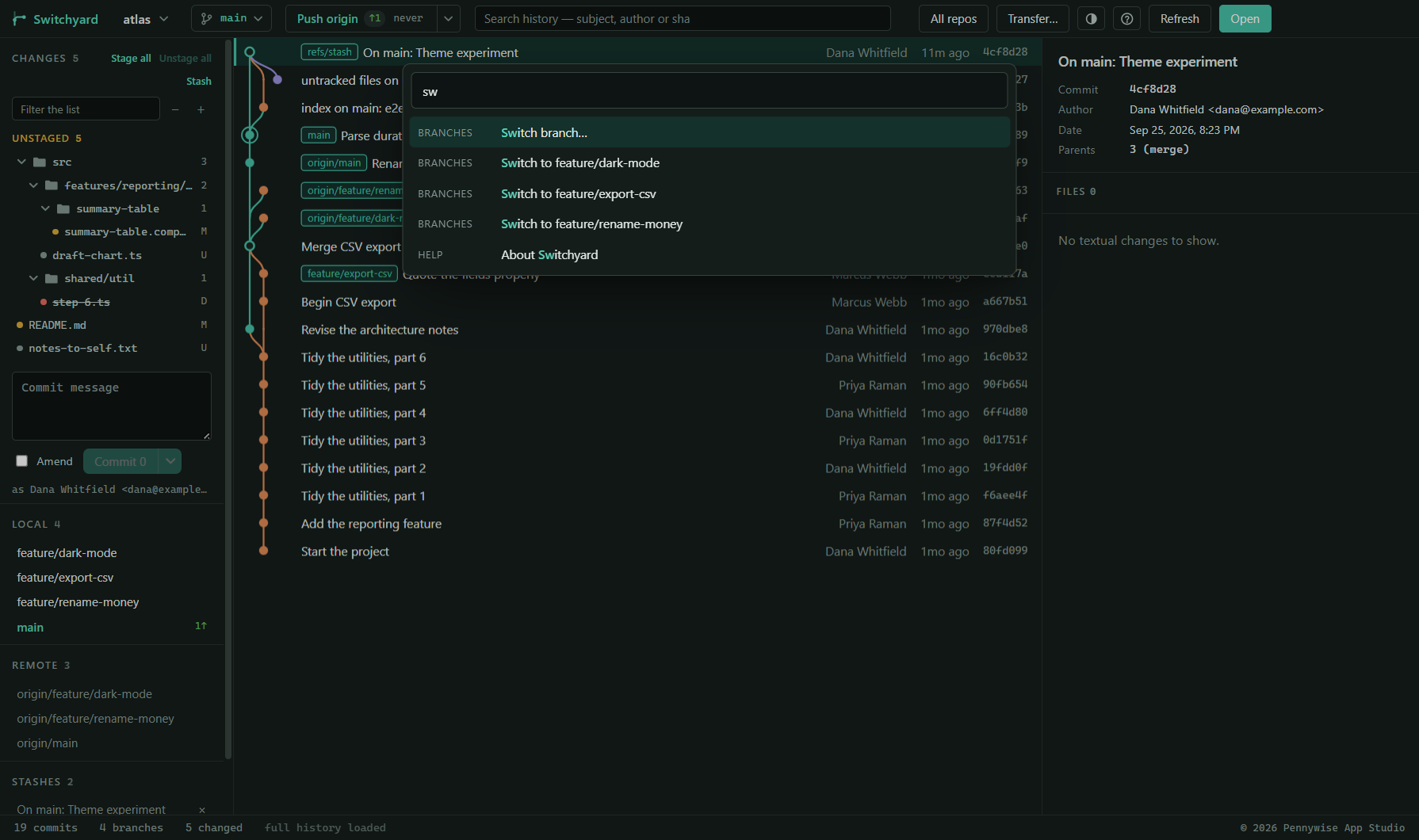
Ctrl+Shift+P opens a box that can do anything in the app:
every action, every branch to switch to, every open repository to go to. Type a few letters
of what you want — they only have to appear in order, so sw feat finds
Switch to feature/login — then ↑ ↓ and Enter, or
click. Each entry shows its own shortcut, if it has one. Only what can be done right now is
listed. It is also in the Help menu as All commands…
Typed commands
Type a git-like command in the palette, or after > in Ctrl+K:
checkout main, branch fix-login from main, merge feature,
rebase main, cherry-pick <commit> to release,
tag v2.1 at <commit>, stash message, fetch origin,
push origin, reset <commit> soft (or keep or
hard), revert <commit> and open <repository>.
Suggestions appear as you type; Tab completes the one picked. A commit can be named
by the start of its id, a branch or tag, HEAD, or words of its subject. A
command that cannot run says why. Each runs the same way as the click it stands for, with
the same questions — branch and tag open the Create dialog filled
in, and reset the reset dialog.
The quick switcher
Ctrl+K opens one box that finds anything in every open repository:
repositories (open and recent), branches, the commits read so far (by subject, or by the
start of an id), files, stashes, pull requests already listed, settings and commands. With
nothing typed it lists repositories and branches. Start with > for
commands only, @ for branches, # for commits or /
for files. Enter does what a click on that thing would: switches to the
repository or branch (asking about uncommitted changes as usual), selects the commit, shows
the file's diff, pops the stash or opens the pull request. Typing never runs git. The key
can be changed in Settings → Keyboard shortcuts…; the box is also in the command
palette.
Repositories
Opening several at once
The repository name at the top left is a menu of every repository you have open, with the branch each one is on. Pick one to switch to it. Up to ten can be open; opening an eleventh closes the one you have used least recently. The set is remembered between runs.
Below them, Recent lists repositories you have opened before and closed since, so one is a click away rather than a trip through the folder picker. The × beside one only takes it off the list; nothing on disk is touched. You can also drag a folder from Explorer onto the window to open it.
- Ctrl+1 … Ctrl+9 jump to a repository by its position in that menu.
- Ctrl+Tab goes back to the one you used before, the way a window switcher does.
- Ctrl+W closes the current one. Nothing on disk changes.
More than one window
New window in the repository menu (Ctrl+Shift+N) opens an empty window; Open … in new window opens a repository in a window of its own. Each window keeps its own open repositories. When you quit, Switchyard remembers which windows were open and what each had, and opens them again next time; a window you close while others stay open is forgotten.
- Windows showing the same repository stay in step: a change on disk shows in all of them.
- If two windows change the same repository at once, the second waits for the first instead of failing on git's lock. After 30 seconds it says another window is changing it.
- A sign-in question appears in the window that started the fetch, pull or push. Updates, notices and plan messages appear in every window.
switchyard <folder>from a terminal opens in the window you used last.
Cloning
Clone repository… asks for three things: the address (an https:// URL,
an SSH address such as [email protected]:owner/repo.git, or a local path), the
folder to clone into, and the name of the new folder, which fills itself in from the
address. The dialog shows the exact folder it will create. Progress is shown as git
reports it, and Cancel clone (or Esc) stops it and removes the
half-made folder. The folder you chose is remembered for next time.
A folder that already has files in it is refused rather than mixed into.
When you have connected an account (see Pull requests), the clone dialog can list that account's repositories, so you pick one instead of typing its address.
For a large repository, Options for a large repository… in the clone dialog can fetch only recent history (a shallow clone), fetch file contents only when they are needed, or fetch a single branch. A shallow repository says so above the changes, with Get all history to fetch the rest later.
Behind a company proxy, set http.proxy in Git settings,
or press Use the Windows proxy there to copy the address Windows uses.
Remotes
Remotes… in the repository menu lists each remote with its address. Edit changes its name or address, Remove takes it away, and the row at the bottom adds a new one by name and address. Make it on a service creates an empty repository on an account you have connected and adds it here, ready to publish.
Open in your editor or terminal
The repository menu opens the repository's folder in your editor (Ctrl+Shift+A) or in a terminal (Ctrl+`). Choose the editor and terminal… lists the ones found on your computer — Visual Studio Code, JetBrains IDEs, Visual Studio, Sublime Text or Notepad++, or Another program…; and Windows Terminal, PowerShell, Command Prompt or Git Bash. A file's right-click menu can open the file itself in the editor you chose.
From a terminal
Help → Command-line helper (or the palette) installs a switchyard
command. After that, switchyard . in any terminal opens that folder in
Switchyard. It needs no administrator rights. If the folder cannot be opened, the window
says why.
From File Explorer and the taskbar
Right-click a folder, or the empty space inside one, in File Explorer and choose Open in Switchyard. Right-click Switchyard's taskbar icon for your recent repositories.
Opening read-only
Open read-only… in the repository menu (or RO beside a recent repository) opens a repository so that Switchyard changes nothing in it: no commits, pushes, fetches, deletions or anything else that writes, and no terminal panel there. A banner says so. Make read-only and Allow changes… switch an open repository either way, also in Settings. It is remembered on this computer. Programs you run yourself outside Switchyard are not stopped.
An icon in the tray
Settings → Show an icon in the tray (off by default) puts Switchyard in the Windows tray, saying which open repositories have unpushed or uncommitted work. Its menu shows the window, opens a repository, or runs Fetch all now. Once it is on, Closing the window keeps it in the tray can be ticked; quitting still quits.
All repositories at a glance
All repos in the top bar lists every open repository with what is staged, changed, untracked, conflicted or not yet pushed, most urgent first. It is read when you open it — press Refresh in the panel for a fresh reading. Click a row to go to that repository. A repository that has been moved or deleted keeps its row and says so.
Tick rows to Fetch, Pull or Push several repositories at once. Each row then says what happened, or why it was passed over; Retry runs only the ones that failed, and Stop starts no more. Ticked repositories can be saved as a named group, whose coloured chip ticks them all again.
The commit graph
Every branch keeps its own column for as long as it exists, so the shape of the history holds still while you read it. A hollow dot is a merge; a ring around a dot is the commit you have checked out. Branch names are filled labels and tags are outlined ones.
- Click a commit to see it on the right. ↑ and ↓ move through the history. Hover one to see its full subject, author and short id.
- Ctrl-click adds a commit to a selection, and Shift-click selects a range.
- Right-click for the commit menu: copy its id or message, copy the files it changed, create a branch or a tag there, check it out, check it out in a new worktree, reset your branch to it, cherry-pick it, rewrite the history after it, reword it or squash it into the commit below, fix it up with your staged changes, go back to an earlier point, revert it, undo it (on the newest commit), browse its files, add a note, save it as a patch file, export it as a .zip, start a bisect, copy files to another repository, or open it on GitHub, GitLab or Azure DevOps (see Links). The menu scrolls when it is longer than the space below the click.
- Search (Ctrl+F) filters by message, author or the start of a commit id. While a search is on, only the matching commits are shown and the lines between them are hidden, because commits that are next to each other in the results are not necessarily parent and child. See Searching for filters by path, text, author and date.
- Drag a commit (or a selection) onto a branch in the left panel to cherry-pick it there; see Working across branches.
- The first 2,000 commits load at once. More load as you scroll to the end, or with Load more history at the bottom.
- Uncommitted changes: when a worktree has changes, a row above the commit it is based on says what is uncommitted. Click it to open that worktree's Changes list.
- Ticket numbers in a commit's message, such as
451342 |orissue id: 442619, are links to your tracker; see Tickets.
With a screen reader
The history works with Narrator and NVDA. Tab to it and each commit is read as an item of a list: its message, who wrote it, when, its short id, the branches and tags on it, and whether it is a merge, the stash or where you are. ↑ ↓, Page Up Page Down, Home and End move through the commits, and with Shift they select a run of them. After a Ctrl- or Shift-click the number of commits selected is said, and a search says how many commits it found once you stop typing.
Hiding, focusing and first parents
- Hide from the graph, in a branch's right-click menu, takes away the commits only that branch has. A chip above the graph counts what is hidden and shows it all again.
- Focus the graph on … and its upstream shows just that branch and the branch it tracks.
- First parent only, in Filters, shows each merge as one step, the way the branch itself went.
Branch colours
Right-click a branch and choose Colour… to pin a colour to it, or tick Every branch starting feature/ (or whatever its prefix is) to colour them all. Settings → Branch colours… lists the prefix rules and pinned branches. Colours are adjusted to stay readable on every theme.
Comparing two commits
Pick two commits and choose Compare: every file with what happened to it (added, modified, deleted or renamed), how far apart the two are, and a file's diff a click away — side by side on a double-click. Swap turns the comparison round. A commit's menu also has Compare with…, for a branch, a tag or a commit id.
Exporting a commit's files
Pick one or more commits and choose Export changed files with folders…: every file those commits changed is written into a folder you choose, in the folders it has in the repository, each as the newest of those commits has it. Files that were deleted are listed, not written, and Open folder on the message takes you there. Copy changed files puts the files themselves on the clipboard instead.
Resetting a branch to a commit
Reset branch to here… in the commit menu says how many commits would leave the branch, warns if any of them are already on the remote, and asks what should happen to the changes: Keep my uncommitted changes (and drop what those commits did), Keep what those commits did, staged (to commit again as one), or Discard everything after it. Each can be undone straight afterwards.
Searching
Filtering the history
The history's search box (Ctrl+F) takes filters as well as plain words, and they can be combined:
path:invoice— commits that touched a file or folder with invoice in its name.text:ReviewNotes— commits that added or removed exactly that text.author:priya— commits by that author, matched as typed.since:2026-09-01anduntil:2026-09-30— commits in a range of dates. Phrases such as 2 weeks ago work too.
So author:priya since:2026-09-01 path:api finds Priya's commits to anything
under api since September. Filters search the whole history, not only what has
loaded so far. The count beside the box says how many match, and if some are older than
what has loaded, Read further back reaches them. Put a value in quotes when it
contains a filter word or spaces.
Filters, beside the box, offers the same fields as a form and writes them into the box for you. It also chooses which history the graph shows: All branches, only the branch you are on, or one branch you pick. A chip beside the box shows when the history is narrowed to one branch. If that branch is deleted, the history goes back to all branches and says so.
Saved views
Save the current history view… (the palette, or Save… in the section's header) keeps the search box's text, which branches are shown, hidden branches and first parents under a name. Saved ones are listed in the Saved views section of the left panel and in Ctrl+K as View: name; a click shows that view again. The save dialog offers two to start with, My commits and Last 7 days.
Searching the files
Ctrl+Shift+F, or Search the files… in the repository menu, searches every file in the repository for some text. Tick Match case to tell capitals apart, Pattern to search with a regular expression, and include untracked files if you want them; ignored files are never searched. Results show each file with its matching lines as you type. Click a result to open the file at that line, in your editor if you have chosen one.
Find in a file or diff (Ctrl+F)
Wherever a file or a change is shown, click into it and press Ctrl+F to find text in it, as in an editor. It searches the whole file or diff, not just the part on screen. Anywhere else in the main window, Ctrl+F still searches the history.
It works in:
- Every diff, and every dialog that shows one: review before pushing, a merge's preview, a file's timeline, taking a file from another branch, lost changes, splitting into commits, copying files, comparing any two files, and a pull request's review.
- The merge editor: all panes at once, or just one of Local, Base (when shown), Merged or Remote.
- The side-by-side compare window: Before and After.
- The file window: the blame, and the diffs under History and Lines.
- The conflict pane beside the unmerged paths, and a commit's files when browsing them.
- Text you have selected is filled in when the bar opens.
- Enter or F3 goes to the next match, Shift+Enter or Shift+F3 to the previous one. The bar says where you are, such as 3 of 41.
- The toggles Aa (match case, Alt+C), ab (whole word, Alt+W) and .* (regular expression, Alt+R) sit beside the box. A pattern that could take too long to run is refused, and says so.
- Esc closes only the find bar, never the window or dialog it is in.
A commit's details
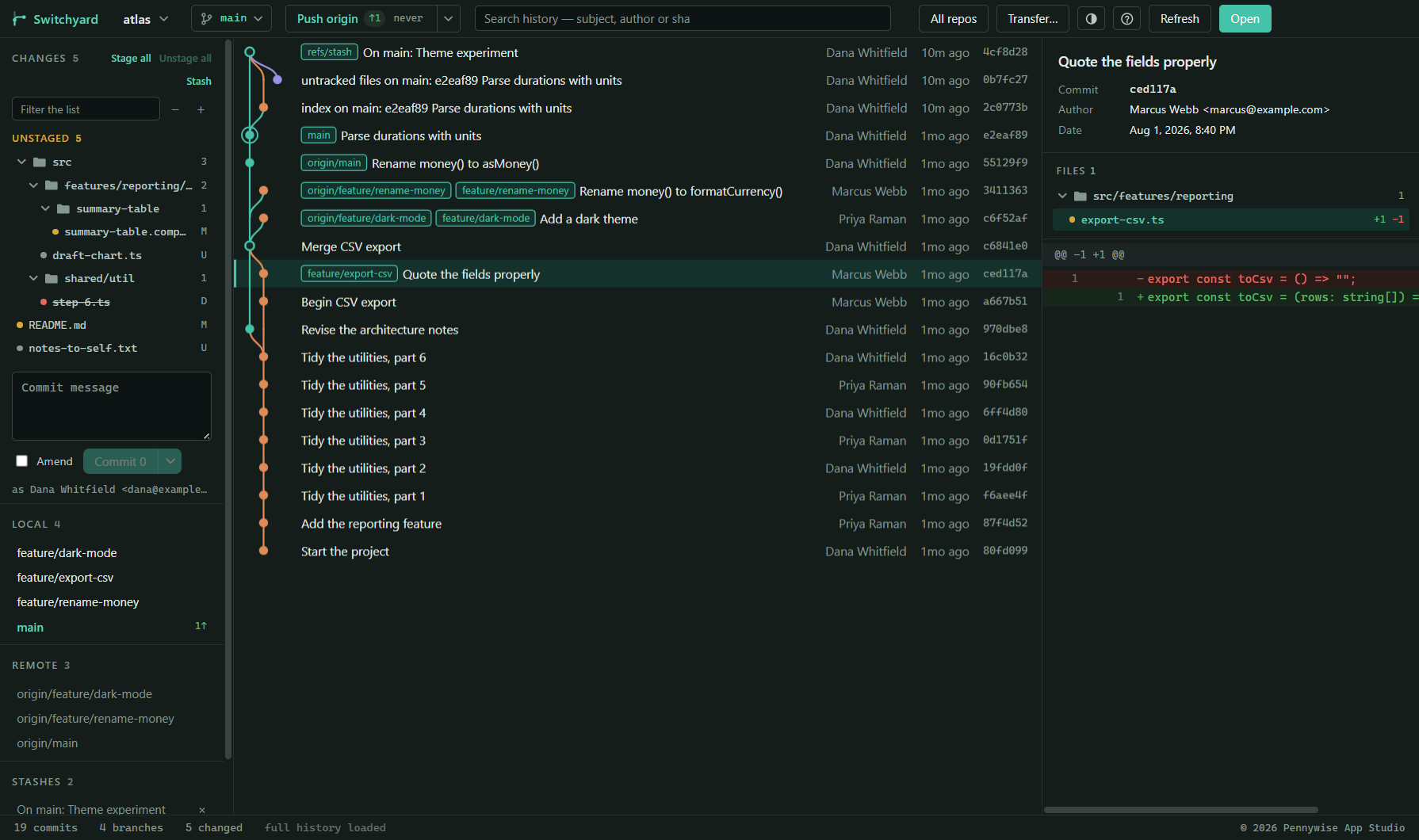
The right-hand panel shows the selected commit's message, author and date, the files it changed as a folder tree, and the diff of the selected file.
- Double-click a file to open it side by side against the commit's parent.
- Right-click a file, here or in the Changes list, for its menu: Open, Open with… (Windows' own chooser), open it in your editor, Show in Explorer, compare it side by side, Git history, Blame, What changes with this?, Copy file, Export with its folders…, Copy path and Copy full path. In the Changes list it also offers Stage, Stash this file, Discard changes… and Unstage. A deleted file cannot be opened, so its menu shows its folder instead.
- Ignoring files, from the same menu: a new file offers Ignore this file,
Ignore every *.log file (for its own extension) and Ignore the folder; a
tracked file offers Stop tracking and ignore…. Edit .gitignore… opens the
repository's
.gitignoreto edit by hand. - More in a file's menu: Make executable (chmod +x) (or Not executable), switching its Line endings between LF and CRLF (undoable), Take it from another branch… (see Working across branches), and, if git is set up with a diff or merge tool of your own — or WinMerge is installed — Compare in … and, for a conflicted file, Resolve in … that tool.
- With two or more commits selected, the commit menu offers Compare oldest with newest; with two, Compare (see Comparing two commits).
- Chips by kind of file —
.json 7,.ts 3— above a commit's files show one kind at a time, and files carry the same icons as the Files view. - Reviewed, above a commit's diff, marks a file as read; the file list shows which you have read.
- Signed commits say whether the signature is verified and who signed it.
- CI status: when the repository is connected to GitHub, GitLab or Azure DevOps (see Pull requests), a commit shows whether its checks passed, failed or are still running; hover it for the list, failures first.
- Notes: Add a note… in the commit menu attaches a note to a commit without changing the commit. The note shows in its details; Edit its note… changes it, and emptying it removes it.
Browsing a commit's files
Browse its files… in the commit menu lists every file the commit has, as it had it, with a filter. Pick one to read it, Save as… to keep that version byte for byte, or open a copy. Your working copy of the file is never touched.
Reading a diff
When a line is changed rather than added or removed, the words that changed are marked in both its old and its new version, here and in the side-by-side window. Code is coloured by its language — TypeScript and JavaScript, JSON, CSS and SCSS, HTML and XML, C#, Java, Python, Go, Rust, SQL, YAML, Markdown, shell scripts and PowerShell. Untick Colour syntax, above the diff, to turn colours off, and tick Hide whitespace changes to leave out changes that are only spacing. Both choices are remembered.
Beside a long diff's scrollbar, a minimap marks where the added and removed lines are, and where Find's matches are; press it to jump there. Word, Excel and PowerPoint files show their text in the diff instead of "binary file", and a Markdown file can be read as a page with Preview Markdown above the diff.
A line that looks unchanged but is marked removed and added again carries an invisible change label: the two differ only in characters you cannot see, such as a byte order mark (shown as a BOM badge), spaces at the end of the line, or its line ending.
Pictures
A changed PNG, JPEG, GIF, WebP, BMP, ICO or AVIF file is shown as the picture before and after, side by side (one above the other when the panel is narrow), each with its dimensions and size, on a checkerboard so a transparent picture's edges show. This works for a commit's files, for what is staged and for what is changed on disk. A new picture shows only its after, and a deleted one only its before. A picture over 16 MB is said to be too large rather than loaded. A picture kept by Git LFS is shown when its file is already in the local LFS store, marked from the local LFS store; otherwise it says git holds only a pointer. Switchyard never fetches it from the network.
When a picture has both a before and an after, four ways to compare sit above it, and the one you choose is remembered: Side by side; Swipe, one over the other with a divider to drag (or focus it and use the arrow keys, Shift for small steps, Home and End); Onion skin, the after over the before with an opacity slider; and Difference, the changed pixels in magenta over a faded before, with how many differ. Pictures of different sizes are compared over the area they share. In a merge conflict the two sides are named Local and Remote.
A file's history and blame
Git history and Blame, in any file's right-click menu, open a window of their own for that file, with a tab for each.
- History lists every commit that changed the file, newest first, and follows it through renames — such a commit says renamed from …. Pick one, or use ↑ ↓, to see what that commit did to the file.
- Compare two versions: Ctrl-click or Shift-click a second version to see what changed between the two, older to newer, even across a rename — or compare one with your working copy. Side by side shows either way in two panes.
- Right-click a version for View commit details (the main window jumps to that commit), Copy file, Export this version… and Restore this version…, which writes it into your working copy with Undo.
- Blame shows each line beside the commit, author and date that last changed it, and counts the lines not committed yet. A bar beside each line shows its age, darker for newer commits. Click a line's commit to see it in the History tab.
- Inline, in the Blame tab, shows the code at full width, with who changed each line and when faded at the end of the line. Click it to see that commit.
- When the repository lists its reformatting commits in a
.git-blame-ignore-revsfile, as many projects do for GitHub, blame looks past them to the real change. Untick Skip listed commits to see them again.
A file's timeline
Timeline…, in any file's right-click menu, opens a slider through every version of the file: each commit that changed it, versions kept by Undo and by repository snapshots that were never committed, the staged copy and the copy on disk. Each step shows what changed since the step before. Restore this version writes the chosen one into your working copy, showing the change first, and can be undone.
History of these lines
In Blame, click a line number and Shift-click another (or select lines) and choose History of these lines; in History, select lines in a diff and choose History of selected lines. The Lines tab lists every commit that changed them, each with its diff of just those lines. Stop ends a long search.
A file that has never been committed has no history yet, so its menu does not offer either.
Side-by-side compare
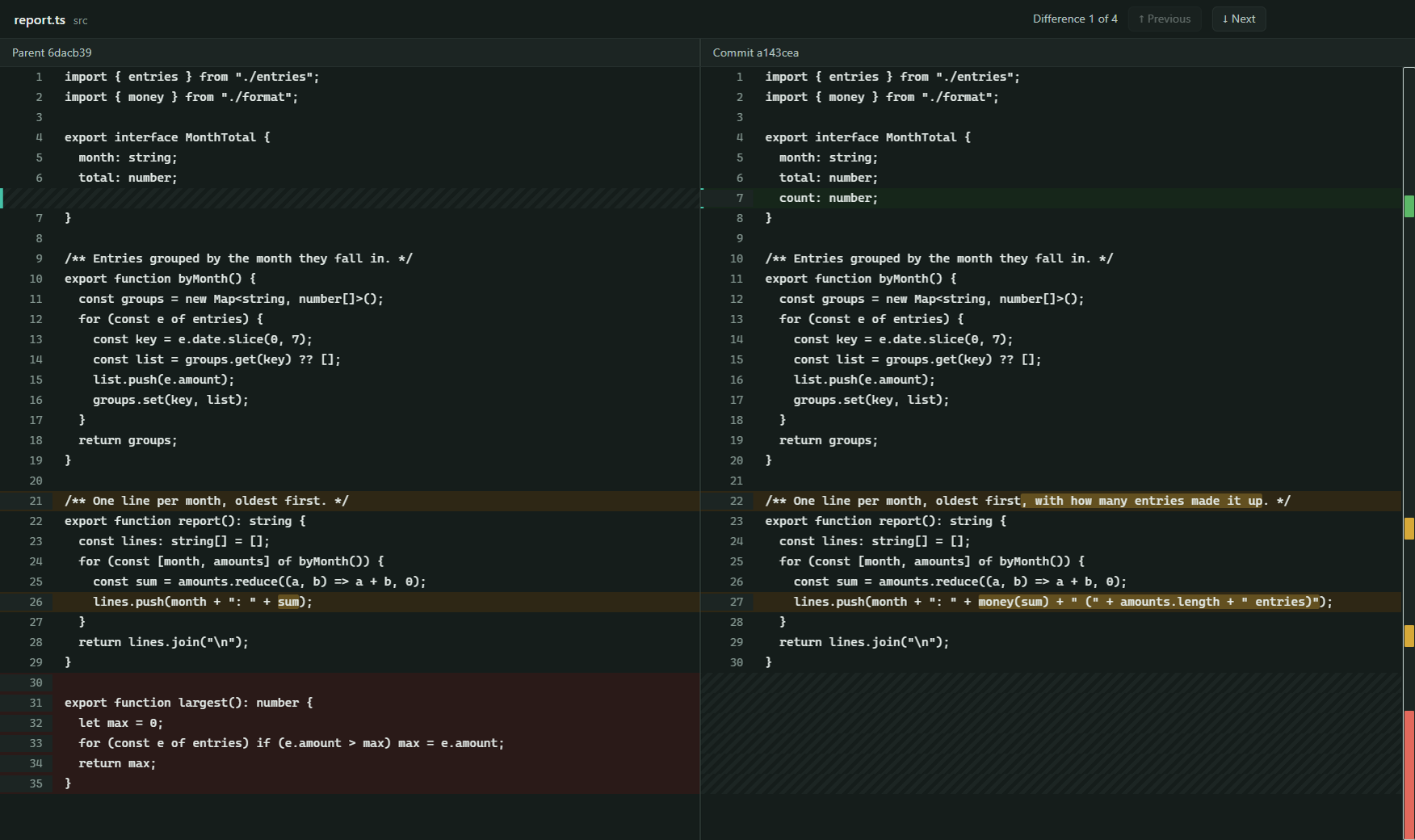
Double-clicking a file — in a commit, or in the Changes lists — opens both versions side by side in a window of their own, the way WinMerge shows them. Both panes scroll together, down and across, and the part of a changed line that differs is highlighted.
| Double-clicked in | Left | Right |
|---|---|---|
| A commit's files | The commit's parent | The commit |
| Staged | The last commit | What is staged |
| Unstaged | What is staged | The file on disk |
- Next and Previous in the window's bar move between differences — or Alt+↓ / Alt+↑, or F8 / F7. The window opens on the first one.
- The location bar down the right edge marks every difference in the whole file. Click it to jump.
- A missing line is hatched, so "nothing here" is never confused with an empty line.
- Esc closes the window. It never changes anything.
- Compare two files or two folders from anywhere on your computer, not only in a repository: type Compare in the command palette.
Files saved in an older Windows encoding rather than UTF-8 are read as Windows-1252, so characters like é and € show as themselves, and the window says so in its title bar. Staging such a file, a hunk or a line at a time, keeps its bytes exactly.
Changes and staging
The left panel shows what is Staged for the next commit and what is Unstaged, each as a folder tree. Hover a row for its buttons: + stages, − unstages, and × discards. Folder rows act on everything inside them. Stage all, Unstage all and Stash sit above the lists, and the filter box narrows them; while it is on, each heading counts what it shows, as in Unstaged 3 of 147. Stage all leaves merge conflicts alone; they are settled in their own list (see Resolving conflicts).
Staging part of a file
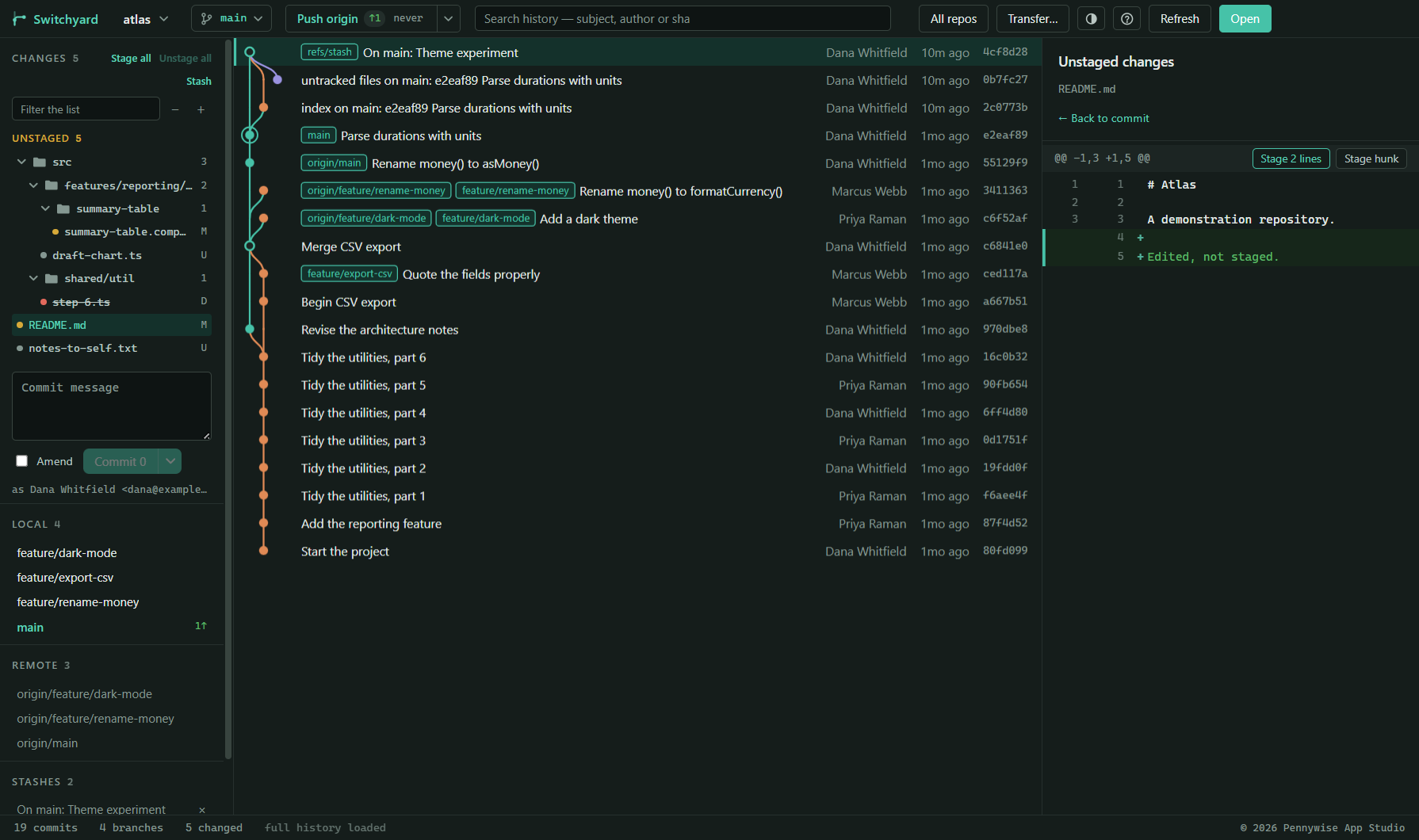
Click a file to see its diff. Each block of changes (a hunk) has a Stage hunk button, or Unstage hunk when you opened the file from the Staged list, so one file's changes can go into different commits. A file that is in both lists shows whichever side you clicked. New, deleted, renamed and binary files are staged whole.
For less than a hunk, click the added or removed lines you want — Shift-click picks a run of them — and press Stage 2 lines (or Unstage) in that hunk's header. Picked lines are marked down their left edge.
To change exactly what goes in, press Edit… on an unstaged hunk, as
git add -e does: edit the hunk's text and stage the result. Your file on disk is
left as it was. The edit is checked before anything is staged, and refused if git would not
accept it.
If the file changed on disk after its diff was drawn, the hunk or lines are refused rather than guessed at, and the diff is redrawn. With Hide whitespace changes on, show whitespace again to stage part of a file.
Discarding
Discarding always asks first, and for a folder it lists the files it would throw away. Git keeps no record of an uncommitted edit, so Switchyard keeps a copy before it discards: Undo in the message that follows, or Ctrl+Z, puts the files back exactly as they were. In an unstaged diff, Discard hunk throws away one block of changes, and with lines picked, Discard 2 lines just those; both can be undone the same way.
Clean…, above the lists beside Stash, deletes untracked files, through the same undoable discard. It can also delete ignored files, such as build output, if you ask: those are listed first, and their deletion cannot be undone.
Warned before a conflict
When files you have changed are also changed by commits on the upstream that you have not pulled, each is marked with a !, and a line at the top of the list says how many there are and how long ago you last fetched. Pulling sooner means a smaller conflict.
Stashes
Stash puts every change, including new files, aside; Stash this file in a file's menu puts just that one aside, and Stash part…, beside Stash, puts aside Only what is staged, or just the files you pick. Stashes are listed in the left panel: click one to bring its changes back (it leaves the list once applied), or × to delete it. Right-click one for Apply, and keep it, Apply, and remove it, New branch from it… and Delete it…. The newest also shows in the history as one row marked stash; select it to see everything it holds, new files included.
If bringing a stash back conflicts with what is there now, Git keeps the stash in the list and leaves the files conflicted. Resolve them, or press Undo the stash apply… in the banner: it lists the files it will put back first, keeps your other unstaged work, and the stash is still there to try again.
Several files at once
In Changes, a commit's files, the reviewed objects and the Files view, pick more than one file: Ctrl-click adds a file, Shift-click takes a run of them, Shift+↑ ↓ extends the pick from the keyboard, Ctrl+A takes everything shown, and Esc clears. The heading says how many are picked, with Clear. Ctrl-click on a folder picks everything in it.
Right-click one of the picked files and the menu acts on all of them, saying how many: Stage, Unstage, Discard… (the question lists them), Commit only these…, Stash, Ignore, Copy files, Copy paths and Export with folders….
Copying, exporting and dragging files
- Copy files, or Ctrl+C in a list, puts the files themselves on the clipboard, to paste into File Explorer, an email or a chat. A commit's files are copied as that commit has them. Copy paths copies their names.
- Export with folders… writes the files into a folder you choose, in the same folders they have in the repository. Open folder on the message takes you there.
- Drag files from any list straight into File Explorer, Outlook or Teams.
Kinds of file
Chips above Changes and above a commit's files — .json 7, .ts 3,
.sql 2 — show one kind of file at a time. Files and folders carry the same
icons as the Files view, with the status letter in its colour. Right-click a folder for
Open in terminal (see The terminal panel).
Committing
Write a message and press Commit, or Ctrl+Enter from the message box. The button says what it will do — Commit 3 files — and, until it can, the line under it says why not. The line below that says who the commit will be attributed to; click it to commit as someone else (see Identities).
Amend changes the newest commit instead of making a new one, and brings its message back to edit. With nothing staged it just rewords the message. Untick it and the message it brought back goes away again; anything you typed yourself stays.
Beside Amend, when they apply:
- Sign — shown when a signing key is set up in git. Untick it to commit unsigned this time; left alone, git's own setting decides.
- Skip hooks — shown when the repository has hooks. Commits without running them, as
git commit --no-verifydoes. - Co-authors — add the people who worked on the commit with you, chosen from who has committed to the repository or typed in. Their
Co-authored-bylines are written into the message for you, and taken out again when you untick them.
The box also warns, before you commit, about a staged file over 50 MB (with GitHub's limits and a way to Git LFS) and about a first line longer than 72 characters, which GitHub cuts off.
Misspelt words in the message are underlined; right-click one for suggestions or to add it to the dictionary. Right-click in any text box for Cut, Copy, Paste and Select all.
Commit hints
The commit box can add a quiet line when a commit mixes several unrelated folders, is very large, has a vague message such as fix or wip, or changes code with no test file in it. They never stop a commit. Each has Don't show this, and Settings turns them back on.
Dependencies and their licences
When a staged change touches a package list — package.json, a .NET project or
Directory.Packages.props, requirements.txt,
pyproject.toml, go.mod or Cargo.toml — the commit
box lists the packages added, removed or changed. It warns when a GPL or similar copyleft
licence comes into a project that is not copyleft itself. Licences are read only from
packages already on your disk; one not installed says "licence unknown". Settings turns
it off.
Files that should not be committed
The commit box warns when what is staged includes a .env file (not
.env.example), a key or certificate file, anything under
node_modules or a build folder such as bin, obj or
dist, editor folders, Thumbs.db, a binary file over 5 MB, or a
text file with mixed line endings. Each has Unstage and Add to .gitignore. It
never stops a commit; Settings → Warn about files that should not be committed turns
it off.
Split into commits
When many files have changed, the commit box offers Split into commits… (also in the palette). Switchyard suggests groups — code by module with its tests beside it, configuration and documentation apart, and, once the codebase map has been read, files that usually change together kept together — each with a message. Drag a file to another group, rename groups, change their order and edit each message, then Commit all. Anything else you had staged stays staged. Undo puts everything back as it was, staged and unstaged as before.
A warning before a secret is committed
When what you are about to commit looks like a password, an access key or a token — for GitHub, GitLab, AWS, Stripe, Slack, Google or Azure, or a private key — Switchyard says so before Commit, Commit and push or Commit and sync, shows where (masked), and offers Cancel, Unstage those files or Commit anyway. It is a pattern check on your computer; nothing is sent anywhere. Look for secrets before committing in Settings turns it off.
More ways to commit
The arrow beside Commit offers Commit and push (Commit and publish for a branch not yet on the remote) and Commit and sync, which pulls first and then pushes. The main button always just commits. If the push or pull fails, the message says the commit was made and what stopped the rest.
- Commit only some files… commits the files you tick, as they are on disk, whatever is staged. A file's menu has Commit only this file…, and picked files Commit only these….
- Commit as another author… records someone else as the author, for a change they sent you.
Undo last commit… (right-click the newest commit) takes it back and leaves its changes staged; Revert this commit… adds a new commit that reverses an older one. A merge is reverted against the branch it was made on. Any commit or amend can also be undone straight afterwards from the message that follows it (see Undo).
Identities and team settings
Identities
Keep several names and email addresses — for work and for your own projects — each with an
SSH key if you like, and say which goes with which repository. Click the
as Name <email> line under the commit box, then
Manage identities and SSH keys… (also in Settings). Each identity has a label, a name, an email, an
optional SSH key and rules, one per line: folder:D:\work for repositories
inside a folder, remote:github.com/acme for those whose remote address
contains it. The first identity whose rule matches wins.
Choosing an identity writes that repository's own git config, so git in a terminal commits the same way. When a repository is set up as someone other than its rule says, the commit box warns before you commit, with a Use … button that puts it right. Identities are saved on this computer only.
Team settings
Team settings… (in Settings, or the command palette) are saved in a .switchyard.json
file at the top of the repository. Commit it, and everyone who uses Switchyard there gets
the same:
- Commit message template, put in the message box for each new commit.
- Message pattern and Branch name pattern, as regular expressions, each with the words to show when something does not match. A message that does not match is warned about; a new branch name that does not match is refused when the branch is made.
- Protected branches, separated by commas (
main, release/*). Committing on one is warned about, pushing to one asks first, and deleting one on the remote says it is protected.
Branches and merging
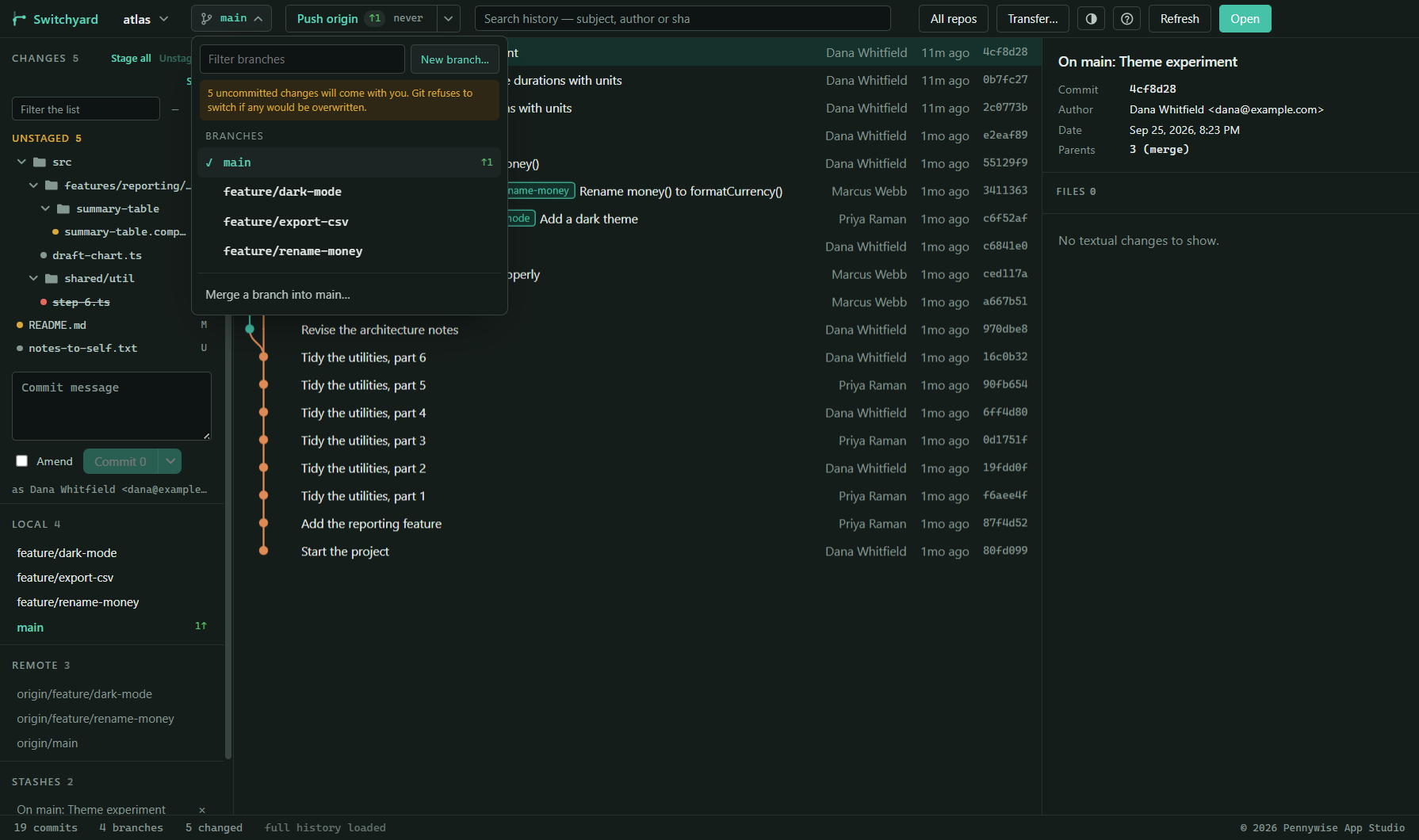
The button next to the repository name shows the current branch and opens the branch menu. Type to filter it; ↑ ↓ and Enter pick one.
- Branches lists your local branches, with how far each is ahead (↑) or behind (↓) its remote. In the left panel, branches named with slashes, such as
feature/login, sit in afeaturefolder, and remote branches in a folder per remote; folds are remembered per repository. - On the remote only lists branches that exist only on the remote. Picking one makes a local branch of the same name that tracks it.
- New branch… makes a branch from where you are and switches to it.
- Merge a branch into … lists the other branches; choose how — Fast-forward when it can, Always a merge commit, Only a fast-forward or Squash into one change (staged for you to commit) — then pick a branch and confirm.
Switching with uncommitted changes
If you have uncommitted changes, switching asks what to do with them: Bring them to … the branch you are going to, as git would, or Leave them on … the branch you are leaving, set aside until you come back. When you return, the Changes panel offers Bring them back. If a switch would overwrite any of them, Git refuses and nothing changes. You can also switch by clicking a branch in the left panel.
Branches remember where you were
When you switch branches in Switchyard, the commit you had selected, the file and its diff, and where you had scrolled are kept for that branch. Switch back and they come back with it, as long as they still exist. A switch made in a terminal is not remembered.
Notes for each branch
Add note in the status bar opens a small notepad for the branch checked out, saved as you type. It is kept on this computer and never written into the repository. Renaming the branch in Switchyard takes the note with it.
Time on each branch
The status bar says how long you have worked on the branch this week. It counts only while Switchyard is in front and you are using it, and only on this computer. Click it for the last seven days per branch, which can be copied as text, beside an estimate from this week's commits.
Branch name templates
A template such as feature/{ticket}-{title} fills in a new branch's name from a
ticket number or title typed into Ticket id or title. Placeholders are
{ticket}, {title}, {user}, {type}
(from a prefix such as fix:, else feature) and
{date}. Set one per repository on this computer, or for the whole team as
branchTemplate in .switchyard.json, which then wins. The name is
still checked by git and by the team's branch pattern, and can be typed over.
Branch, tag and stash menus
Right-click a branch in the left panel or the branch menu to switch to it, merge it, rebase onto it, rename it, change or stop what it tracks, or delete it, here or on the remote. A tag (click or right-click it) can be checked out, pushed, deleted here or on the remote, or given a branch. From the commit menu, Create a branch here… and Create a tag here… make one at that commit. Deleting a branch or tag, here or on the remote, and renaming a branch here, can be undone from the message that follows.
With a signing key set up in git, Create a tag can sign it, and any tag's menu has Check its signature.
Favourite branches
Right-click any branch, local or remote, in the left panel or the branch menu, and choose Add to favourites. Favourites get a Favourites section of their own at the top of the left panel, and come first in the branch menu. A favourite works like the branch's own row: click to switch, right-click for its menu, drop a commit or a branch on it. They are kept per repository on this computer. A branch renamed in Switchyard keeps its star, and so does undoing the rename; a deleted branch is left out until it comes back. Remove from favourites unstars it, and with none left the section goes away.
Stacked branches
Right-click a branch and choose New branch on top of… to build one change on another. When the branch underneath moves on, open Its stack from the branch's menu and press Restack: every branch is put back on top of the one below it, keeping only its own commits, and one Undo takes the whole restack back. From the stack, open a pull request for each branch into the one underneath. Stacked branches are part of the paid plan.
Drag a branch onto a branch in the left panel to merge or rebase: drop another branch on the one you are on, or yours on another, and choose Merge or Rebase; the usual question follows. Between two branches you are not on, it asks you to switch first.
Comparing two branches
Compare with … in a branch's menu shows the commits each branch has that the other lacks, and the files the other branch changed since the two split, each with its diff. It also asks git whether merging would conflict, and names the files that would; the merge question says so too, as in Git expects conflicts in 1 file. From there, Merge … into … starts the merge.
Preview the result of a merge
Preview the result of merging … (the branch menu's merge mode), Preview the result… in the branch compare, or the palette shows every file as it would be after the merge, before anything is changed: a clean file's diff, and a conflicted file with git's markers between Local, Base and Remote. It also says when a merge would be up to date or a fast-forward. Merge now… asks the usual question.
Cleaning up finished branches
Clean up finished branches…, at the foot of the branch menu, lists the local
branches that are merged into the one you are on, or whose branch on the remote has been
deleted, and deletes the ones you tick in one go. Long-lived branches such as
main, master and develop, the branch you are on and
any branch checked out in a worktree are never offered. A branch whose remote is gone but
which still has commits of its own is listed unticked, with how many. One Undo brings
them all back.
Merged and stale branches
A local branch says merged when every commit on it is in the branch you are on (the
same branches Clean up finished branches offers). A branch with no new commit for a while
says how long, such as 4 months; set when that starts in Settings →
Branches… (90 days at first). main, master,
develop, trunk, a remote's default branch and the branch you are
on are never marked.
Archiving a branch
Right-click a branch and choose Archive to move it out of Local and the branch menu into an Archived section at the end of the left panel. Git is not changed. It comes back by itself when it gets new commits or is checked out; Unarchive brings it back sooner, and typing its name in the branch menu still finds it. Settings → Branches… can archive merged or stale branches for you (both off at first; favourites never). Archiving a favourite takes it out of Favourites, and unarchiving puts it back.
Commits that touch the same files
Right-click a commit and choose Show overlap with this commit. Every commit in the history gets a mark for how its files overlap: the same files, more, fewer, many, a few, or too many to compare. Hover a mark to see the shared files. A legend above the graph explains them; its Overlap × turns it off. Use it to find commits to squash or reorder together.
Worktrees
A worktree is another branch checked out in a folder of its own, beside your repository, sharing the same history. Work on both without switching back and forth.
- The Worktrees section in the left panel lists them, the repository's own folder first (tagged repo), each with the branch or commit it has out. Locked and missing ones are tagged.
- New… in that section — or Check out in a new worktree… in a branch's menu, or the commit menu — makes one from a new branch, an existing branch not checked out anywhere, or a commit. A folder beside the repository, named for the branch, is suggested. It opens in Switchyard afterwards unless you untick that.
- Click a worktree to open it as a repository of its own. Right-click to open it, show it in Explorer, lock or unlock it, or remove it.
- Removing one tells you first about any uncommitted changes in it. Its branch is kept. A locked worktree has to be unlocked first, and the repository's own folder cannot be removed.
- When a worktree's folder has been deleted, Forget … whose folder is gone at the foot of the section clears it from git's list.
- A branch checked out in another worktree says where, in the left panel and the branch menu, and clicking it opens that worktree — git will not check it out twice.
All repos lists a worktree right after its repository.
Working across branches
Cherry-picking onto any branch
Cherry-pick onto another branch, or with options… in the commit menu picks the selected commits onto any branch, not only the one you are on — without switching. Or drag commits from the history onto a branch, or a worktree, in the left panel. The dialog offers:
- Note in each message where it came from — adds the original commit's id to the message, as
git cherry-pick -xdoes. Remembered. - Apply the changes and stage them, without committing — for you to commit yourself (only onto the branch you are on).
A branch checked out in another worktree is picked onto there. Any other branch is picked onto in a temporary folder that is removed afterwards; if the pick conflicts, that folder is opened for you to settle it. Nothing in your own folder changes.
Cherry-pick its commits onto …, in a branch's menu, lists the commits that branch has and yours lacks, oldest first, leaving out ones already picked under another id. Merge commits cannot be picked and are counted instead.
Taking a file from another branch
Right-click a changed file and choose Take it from another branch…, or in a commit's files, Take this version into the working tree…. You see the diff first. The file is written to disk, not staged, and Undo puts your version back.
Fetch, pull and push
One button does what the branch needs next, as GitHub Desktop's does:
| The button says | When |
|---|---|
| Publish branch | The branch is not on the remote yet. |
| Pull origin ↓2 | The remote has commits you do not. A push would be refused until you pull. |
| Push origin ↑1 | You have commits the remote does not. |
| Fetch origin | Nothing is known to be waiting either way. |
| No remote | The repository has no remote to talk to. |
origin stands for whatever your remote is called, and the button always names the
remote the action really uses. Pull and fetch use the remote the branch tracks; with several
remotes, fetch reads them all and says Fetch all remotes. A push goes where Git itself
would send it: the branch's own pushRemote if you set one, else
remote.pushDefault, else the remote it tracks — so a fork you push to and an
upstream you pull from each get named correctly. A new branch is published the same way,
falling back to origin, else the only remote there is.
The small age beside it, after a clock — now, 12m, 3h,
2d or never — is how long ago the remote was last read. The counts
are only as fresh as that. The arrow beside the button offers every action directly:
Fetch, Pull, Pull with merge or Pull with rebase (whichever your
settings do not already do), Push and Force push…. Force push uses
--force-with-lease --force-if-includes, so it is refused if the remote has
commits you have not seen — even ones fetched in the background — and you confirm it by
typing the branch's name.
Pull with preview… and Push with preview… (when the branch tracks one) show the commits and files that would come in or go out first, with Pull now or Push now. A pull that rebases warns first if any of your commits are already on another remote branch, since rebasing them rewrites what others may have.
Tests before a push
Settings → Tests before a push… names a test command for the repository, such as
npm test, to run before every push — or ask first each time. Its output shows
as it runs, and Stop ends it. When it passes, the push goes ahead; when it fails,
the push is held back with the output, Run again and Push anyway…, which asks
first. Commit and push and Commit and sync run it after the commit, so what is tested is
what is pushed. A pass is remembered until the commit or the files change.
Review before pushing
Review before pushing… in the sync menu (or the palette) lists the commits and files a push would send. Click a file for its diff, tick it once you have read it, and leave yourself a note on any file. Push is ready once every file is ticked; a new commit unticks only the files it changed. Settings → Review the outgoing files before every push opens it whenever you push.
Several remotes side by side
Branches on every remote… in the repository menu shows each local branch against each remote: how far ahead or behind it is, or missing. Push to all remotes pushes a branch to every remote, never forced, asking first for a protected branch, and says the result in each cell.
Progress, and stopping
While a fetch, pull or push runs, the button fills as git works and says how far it has got; its tooltip has the size and the speed. While stopping is safe, the arrow beside it becomes a stop button: a download can be stopped, and nothing is changed. A merge, or a push that has already sent everything, has to finish, and says so. A long download is not cut off by a time limit as long as data keeps arriving. A fetch, pull or push that the network drops is tried again, twice, before it is called failed.
Gerrit
When the remote is a Gerrit server — Switchyard recognises the usual addresses, or tick it
in Remotes… — the sync menu offers Push for review…, which sends your commits
to refs/for/ and the branch, with an optional topic.
How pull works
Pull follows your own git settings — merge, rebase, or fast-forward only — and the menu says which it will do. If a fast-forward-only pull cannot fast-forward, the message offers Pull with merge and Pull with rebase. If a pull is refused because of uncommitted changes in the way, it offers Set them aside, pull, and bring them back.
Fetching by itself
Every 15 minutes, while the window is open, the repository on screen is fetched in the background, so the counts on the button are worth believing. It shows no progress, never asks you to sign in, and gives way the moment you fetch, pull or push yourself. If it cannot fetch, the fetch age turns amber and its tooltip says why. Turn it off, or back on, with Fetch automatically in the button's menu.
Windows notifications, also in that menu and off until you turn them on, tell you when a background fetch finds new commits for your branch, and when a long fetch, pull or push finishes while Switchyard is not in front.
Signing in
When a remote wants you to sign in and your own credential helper has nothing to give, Switchyard asks in the window: a username and password (or token) for an HTTPS remote, the passphrase of an SSH key, or an SSH agent's confirmation. A server your computer has not met before shows its key's fingerprint to compare before you choose Trust and connect. The dialog names the server the answer goes to; the answer goes to git and nowhere else, and Switchyard does not store it. Your credential helper keeps it once it works, as it would in a terminal, and the dialog tells you if no helper is set up, so git will ask again next time. Cancel, or Esc, stops what asked.
Pull requests
When a repository's remote is on GitHub, GitLab, Azure DevOps, Bitbucket Cloud or Gitea (Forgejo and Codeberg included) — and GitHub Enterprise, self-hosted GitLab and Gitea, and Azure DevOps Server — the left panel has a Pull requests section listing the open ones.
Connecting
Press Connect to see its pull requests and paste a personal access token of your own: on GitHub with Pull requests and Contents read and write, on GitLab with the api scope, on Azure DevOps with Code read and write. The dialog has a link to the page that makes one. The token is checked with the service, kept on this computer encrypted by Windows so only your account can read it, and sent only to that service — never to Switchyard. Disconnect, under the list, forgets it.
Several accounts on one service
You can connect a work and a personal account on the same GitHub, GitLab, Azure DevOps, Bitbucket or Gitea side by side. Switchyard asks the service who each token belongs to. Each repository uses one account: the one it first worked with, or the one you connected from it. Where several could apply, the Pull requests section asks Which account for this repository? once and remembers.
With more than one account on a service, the Pull requests header shows the one in use. Click it, or Accounts… under the list, or Settings → Accounts on …, to Use for this repository, Add another account… or Disconnect…. Disconnecting one leaves the others. In Identities…, tick the service accounts an identity uses. Each token is sent only to its own service, and warnings about expiry or rate limits name the account.
For a server Switchyard does not recognise, say what kind it is. For Azure DevOps Server,
the collection is suggested from the remote's address for you to confirm. A server on plain
http:// is never sent your token unless you tick
Send it over http anyway, to this server only.
Working with a pull request
- Click one to see its title, description, author and branches. Check out fetches it into a branch named
pr/and its number, and switches to it; Open in the browser shows it on the service. - Approve it, or write a comment and press Send comment.
- Review its changes inside Switchyard: each changed file and its diff, with the comments already on its lines shown as threads beside it. Click a line to comment on that line; the comment goes to the service as a review comment. Reply to a thread, resolve it or open it again, and when the request is checked out, apply a suggested change straight to your working file — then commit and push it as usual. Undo takes it back.
- Its CI status shows whether its checks passed, failed or are still running.
- Merge… merges it the way you choose (with a merge commit, squashed or rebased, as the service allows), after a confirmation, and can delete its branch afterwards. A pull request goes in as it stood when you read it: if anything was pushed to it since, the service refuses rather than merge what you have not seen. A draft cannot be merged.
- New opens one from the branch you are on: a title, a description, the branch it goes Into, and whether it is a draft. If the branch is not on the remote yet, Push and create pushes it first.
Pull requests, the whole way
These are part of the paid plan, as the service features below are.
- New fills in the repository's pull request template, and can name reviewers, assignees, labels and an issue to close, read from your service.
- Make a draft ready for review.
- Turn on auto-merge, or join the merge queue when the branch requires one. Each is held to the commit you saw.
- Reviews: collect line comments, then send them together with Approve, Request changes or Comment. Mark files viewed (kept in step with GitHub).
- Forks: Switchyard recognises a fork and adds the original repository as
upstream. Sync fork never forces, and new pull requests aim at the original repository. switchyard://links open a repository, a commit, a pull request or the clone dialog. Switchyard always asks first, and never runs anything from a link.
Bitbucket has no assignees, labels or auto-merge; Azure DevOps has no assignees; GitLab has no Request changes.
Pull requests go through Windows' own proxy settings and trust the certificates Windows trusts, so they work on a network where everything passes through a proxy. When the service cannot be reached, the panel says why in plain words. Where the proxy accepts your Windows sign-in, nothing is asked. A proxy that wants a password asks for one in Sign in to the proxy: the answer goes to that proxy only, never to the service, and is kept in memory until Switchyard closes, never written down. Cancel (or Esc) stops the request, and after three refused passwords Switchyard stops asking and says so.
CI runs, issues and releases
Once a repository is connected to its service (see Pull requests), more of the service's work can be done from here. Requests go only to that service, with your own token. CI runs, review threads, issues and an account's repositories are part of the paid plan.
CI runs
Where a commit or a pull request shows its checks, Runs… lists each run with how long it took. Open one to see its jobs, read a failed job's log right here — its last 500 lines, scrolled to where it failed — run the failed jobs again, or stop a run. This works for GitHub Actions, GitLab pipelines and Azure Pipelines; Bitbucket Pipelines can be stopped.
Issues
The repository menu and the Pull requests section open the repository's open issues.
Start a branch for one, add Closes #12 to your commit message in one click, or open
a new issue. In commit messages, #12 opens that issue, and if your team names
its tracker in .switchyard.json
("issueTracker": "https://tracker.example.com/browse/{id}"), keys like
PROJ-12 open there.
Tickets
Numbers like 451342 | or issue id: 442619 in a commit's message
are recognised as tickets: a click opens your tracker, and Show all commits of this
ticket filters the history — or type ticket:451342 in the history search.
Set the pattern and your tracker's address in Settings → Tickets…, where you can try
the pattern on a message first. This needs no connected service.
Releases
In Release notes… (see More git tools), choose a tag and press Make a release on GitHub (or GitLab, or Gitea). The tag is pushed first if it is not there yet.
Your token, looked after
When a token is about to expire, or the service is about to stop answering for a while because of its rate limit, Switchyard says so once, under your pull requests.
Working with your team
Conflicts with the team
After each fetch, Switchyard asks git whether your branch would conflict with the branches teammates committed to in the last 30 days, and a line says so, naming the files. Conflicts with the team… in the repository menu lists each branch, its author and the files, with Compare. Only committed work is compared, and nothing in your repository is changed. It can be turned off in that panel.
My work
My work… (the repository menu, or All repositories) shows across every open repository what is uncommitted, branches ahead of their remote, and branches never pushed. With an account connected for a repository, it adds your pull requests with their checks, and the reviews asked of you.
Code owners
When the repository has a CODEOWNERS file, the commit box says who owns the
files you are committing, and a pull request's review lists the owners of its files and
whether each has approved.
Weekly summary
Weekly summary… lists your commits across open repositories for this week, last week or any dates, by repository and day, with their branches. Copy it as text or Markdown.
Links to GitHub, GitLab and Azure DevOps
When a repository's remote is on one of these services, the menus offer its pages, and a link to copy and paste where people talk about the work:
- A commit — Open on GitHub (or GitLab, or Azure DevOps) and Copy link in the commit menu.
- A branch — the same two in its right-click menu.
- A file in a commit — Open on … at this commit and Copy link at this commit in its right-click menu.
- The repository — Open on … and Copy its link on … in the repository menu.
A commit not pushed yet, or a branch not published, has no page there, so instead of a link that leads to "not found" Switchyard says to push or publish first. The page opens in your browser; Switchyard itself sends nothing to the service.
Rewriting history
Cherry-pick
Right-click a commit from another branch — or several, Ctrl-clicked — and choose Cherry-pick onto … to copy them onto your branch, oldest first. Commits your branch already has are not offered, and merge commits are refused. If a pick conflicts, the conflict banner takes over, as for a merge. To pick onto another branch, or with options, see Working across branches.
Reword, squash and fix up
For a commit on your branch, the commit menu offers quicker ways than the full rewrite:
- Reword… changes its message. Nothing staged goes in.
- Squash into the commit below… folds it into the commit before it, keeping both messages.
- Fix up this commit with the staged changes… folds what you have staged into it, as
git commit --fixupfollowed by an autosquash rebase does.
Each is refused for a commit already on a remote, one with a merge after it, or while another operation is in progress, and each can be undone straight afterwards.
Rewrite history (interactive rebase)
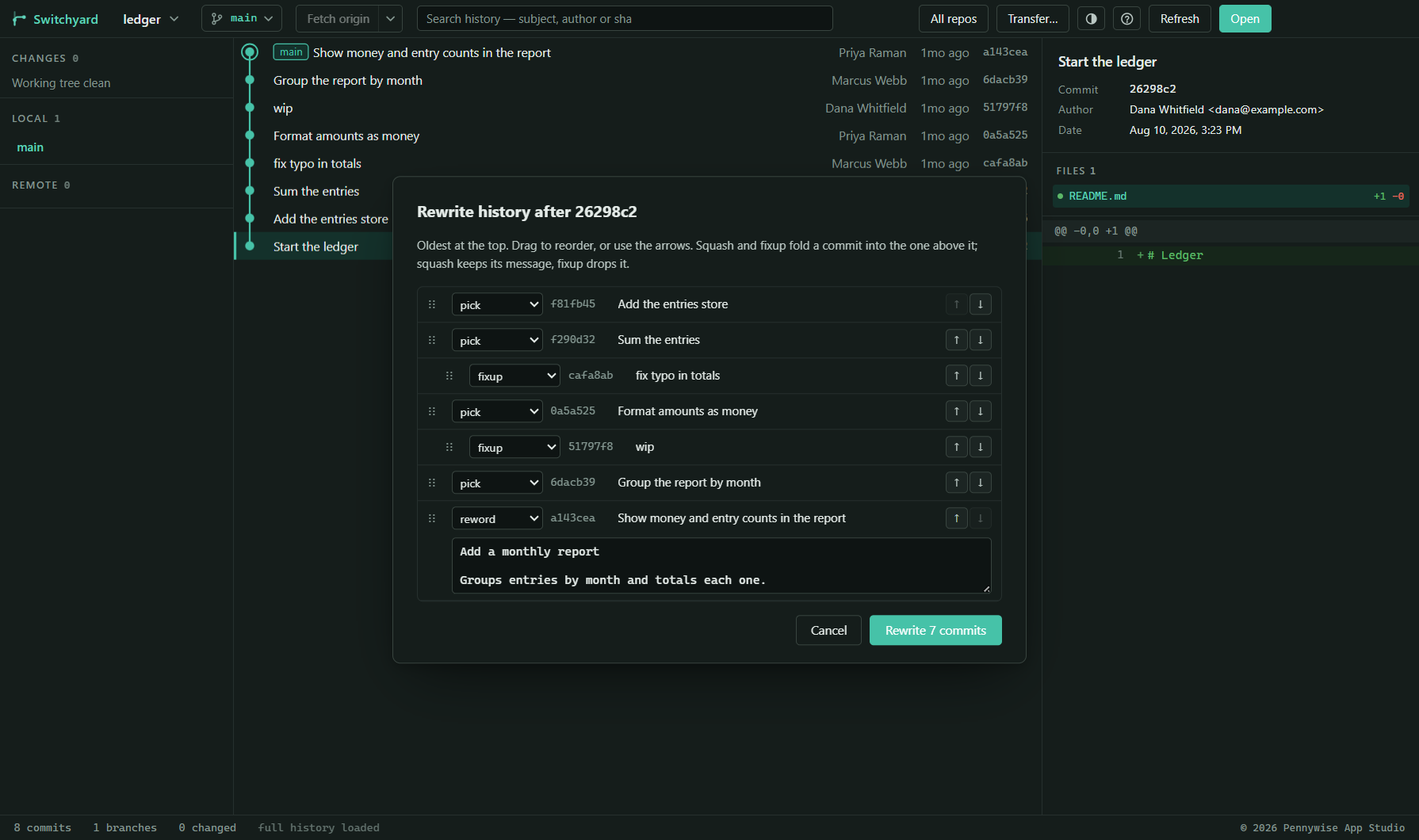
Right-click a commit on your branch and choose Rewrite history after this commit…. Every commit after it is listed, oldest at the top. Drag them — or use the arrows — to reorder, and choose for each one:
| pick | Keep it as it is. |
| reword | Keep it with a new message, typed in place. |
| squash | Fold it into the commit above, keeping both messages. |
| fixup | Fold it into the commit above, dropping its message. |
| edit | Stop after it, so you can change and stage files to amend it, or add commits after it; then press Continue in the banner. |
| drop | Leave it out. |
The dialog warns when some of the commits are already on the remote, because rewriting them means a force push. Commit or stash your changes first. If a step conflicts, resolve it and press Continue, Skip to go on without that commit, or Abort to put everything back as it was.
Split a commit
Right-click a commit of your branch that is not yet pushed and choose Split this commit…. Pick files, hunks (Pick hunk) or single lines (click; Shift and click for a range) to become a commit of their own, give it a message, and choose whether the picked part comes first or second. Uncommitted changes are never touched, and Ctrl+Z puts the branch back.
Take or move lines out of this commit… works the same way. Take out of this commit removes the picked changes from it and every commit after, and leaves them staged. Move into another commit puts them into the commit you choose.
Absorb
With changes staged, press Absorb… on the Staged heading (or find it in the
palette). Each staged hunk goes into the commit of your branch that last changed its lines,
among the last 10 commits not yet pushed (absorb.maxStack changes that). The
plan is shown first, and each hunk that stays says why. Press Absorb N hunks to do it.
Revert part of a commit
In a commit's diff, Revert hunk takes that hunk of the change back out of the file on disk; or click lines and press Revert N lines. To take back a commit's whole change to one file, right-click the file in the commit or in its Git history and choose Revert this change in the working tree…. Nothing is committed or staged. If the file has changed again in those lines, nothing is done and it says why; Undo puts the file back.
Move commits to a new branch
Committed on the wrong branch? Right-click the first of the commits and choose Move these commits to a new branch…. It and the commits after it go to a new branch, and your branch goes back to before them (or to its upstream). Uncommitted changes stay where they are; tick Switch to the new branch to carry on there. Commits already pushed are not offered, and Undo puts both branches back.
Go back to an earlier point
Git remembers every place your branch has been — after each commit, reset, merge, pull or rebase. Go back to an earlier point… in the commit menu (or the palette) lists them, newest first. Choose one and you are told which commits would leave the branch and which would come back before anything moves. Uncommitted changes are kept, and the move is itself remembered, so it can be undone the same way.
Remove a file or a secret from all history
Remove from all history… in the repository menu takes files or folders you name out
of every commit, or replaces secrets you name with ***REMOVED***. Every branch
and tag is kept first, so Put back undoes it until you choose Let go of the
backup. It then says which branches need a force push. A secret that was ever pushed must
still be changed wherever it is used.
Undo
Most things you do can be taken back straight afterwards: commits, amends, merges, pulls, cherry-picks, history rewrites (rewording, squashing and fixing up included), resets, discards and cleans, deleting a branch or tag (on the remote too), renaming a branch, cleaning up finished branches, taking a file from another branch, changing a file's line endings, and every choice made while resolving conflicts. The message that follows the action has an Undo button; Ctrl+Z (outside a text box) and Undo … in the command palette do the same.
- Ctrl+Z and the message's button undo the newest action, as long as nothing has moved on since.
- Ctrl+Z only takes back the newest action since Switchyard started. Help → Operation log… lists every action that can be taken back, newest first, kept in the repository for 30 days and across restarts. An older one is taken back from there, after asking, and only if nothing it touched has changed since. Entries recorded on another computer are never offered.
- The log is kept under
refs/switchyard/oplog.git push,push --allandpush --tagsnever send it;push --mirrorand copying the folder do. Clear the log… lets it go. - Redo (Ctrl+Y or Ctrl+Shift+Z, or the message's button) does an undone action again. A new action clears what could be redone.
- A discard is kept byte for byte, so undoing it gives back exactly what was there. The discarded files are also copied to the Recycle Bin, in one folder named for the repository and the time.
- Nothing that has reached a remote is undone: a commit that was already pushed is refused, because others may have pulled it.
Repository snapshots
Take a snapshot, in the repository menu, saves everything in one step: every branch and tag, where HEAD is, the stashes, what is staged, what is changed and untracked files. Repository snapshots… lists them. Restore first shows exactly what will change and asks you to type the snapshot's time; it then takes a snapshot of how things are now, so a restore can itself be undone. Branches and tags made since are kept; files made since are removed only if you tick it.
Rebasing onto a branch, rewriting history, a hard reset, restacking and removing a file from all history offer Take a snapshot first. Snapshots stay in the repository and are not pushed, except by a mirror push, which the dialog points out.
Resolving conflicts
When a merge, pull, rebase, cherry-pick, revert or stash pop stops on conflicts, a banner
at the top of the Changes panel names the operation and how many files are left, and the
conflicted files are listed first, under Unmerged paths as git calls them, apart
from your other changes. Switchyard uses git's own words for the two sides:
Local is your side (git's --ours), and Remote is the branch,
commit or stash being brought in (--theirs). The tooltips name the branch or
commit each one is. (During a rebase git swaps them: Local is what has been rebased so far,
and Remote is your own commit.)
- Each unmerged path has two lines: its name, then the kind of conflict in git's own words, such as [both modified] or [deleted by them], with its buttons always in sight. Local and Remote use that side for the whole file — when that side deleted the file, using it deletes the file, and the tooltip says so. Merge…, for a file both sides edited, opens the merge editor; so does double-clicking the row.
- With more than one file, All Local and All Remote in the banner use a side for every one.
- Continue finishes the operation once nothing is left unresolved; the banner says all conflicts fixed when that is so. A rebase, cherry-pick or revert also offers Skip, to go on without the commit it stopped on. Abort puts everything back as it was before it started.
- Stage all never stages an unmerged path: git would count a file staged with its markers still in it as resolved.
Seeing a conflict
Click an unmerged path to see it on the right: the file itself, at its real line numbers and in syntax colours, with each conflict laid out as two labelled blocks, Local and Remote, and long unchanged stretches folded. If your git is set to show the common ancestor, a third block shows the text before either change.
- Settle one conflict at a time with Use Local, Use Remote or Use both (Local first) under its header. The file is written, not staged, and the other conflicts stay as they are until you get to them. The buttons stay in sight when a long line scrolls the file sideways.
- ↑ Previous and Next ↓, or F7 and Shift+F7, move between conflicts. Wrap long lines and Colour syntax are beside them.
- Above the file, Open merge editor, Use Local and Use Remote act on the whole file, and Open file opens it to edit the markers out by hand. Edits made in another editor show up here each time you save.
- Mark resolved stages the file as it is. If conflict markers are still in it, it warns you first, because git would take the markers as the resolution.
- If git is set up with a merge tool of your own, or WinMerge is installed, the file's menu also offers Resolve in … that tool.
Files that are not two texts to merge
- Pictures in conflict show both versions side by side. Other non-text files show each side's size; use one side.
- A file deleted on one side (modified/deleted) says which side deleted it and which changed it, and the buttons say whether they keep it or delete it.
- A file renamed differently on each side says what each side renamed it to, so you can keep one name and delete the other.
Conflicts settled as before (git rerere)
Git can remember how you settle a conflict and, when the same conflict comes back — in a
rebase, a merge done again, or one branch merged into several others — settle it the same
way for you. When it is off and there are conflicts, the banner offers
Remember my resolutions…, which turns on rerere.enabled in your git
settings and has git note the conflicts already open, so how you settle them is recorded
too. It is also in Settings → Git settings…, with Stage what rerere settles.
A file git settled this way is still listed under Unmerged paths, marked settled as before, for you to look over and Mark resolved. If that earlier resolution is wrong here, Forget this resolution… (in the pane, or Forget how it was settled before… in the file's menu) puts the conflict markers back for you to settle afresh, and how you settle it this time is what git remembers. Undo puts the file back as git had settled it.
Undoing a choice
Using a side, for one file or for all of them, and settling a single conflict can be undone straight afterwards, from the message's Undo or with Ctrl+Z. The conflict comes back exactly as it was, along with any edits you had made by hand.
The merge editor
The merge editor opens in a window of its own, laid out like WinMerge's three-way merge: Local, Merged and Remote side by side, and Base, the common ancestor, between them when you press Base.
- All the panes scroll together, up and down and side to side, line by line, and each has its own line numbers. Long lines are never cut off.
- Conflicts are yellow, the one you are on darker and outlined, and resolved lines in Merged turn green. The words that differ are marked.
- The line under the cursor is shown from every side in a pane underneath.
- A strip beside the scrollbar marks every conflict; click one to go there.
- ← Local, Both and Remote → choose for the current conflict, and All Local and All Remote for every one. Edit… (or F2, or double-clicking a conflict) lets you type the merged text yourself.
- Undo and Redo step through your choices and edits.
- Save and mark resolved writes the file and stages it. It can only be saved once every conflict in it has a choice.
| Alt+↓ / Alt+↑ | Next / previous conflict |
| Alt+End / Alt+Home | Last / first conflict |
| Alt+← | Use Local for the current conflict |
| Alt+→ | Use Remote |
| Alt+B | Use both, Local first (Alt+Shift+B: Remote first) |
| F2 | Edit the merged text of the current conflict |
| Ctrl+Z / Ctrl+Y | Undo / redo |
| Ctrl+S | Save and mark resolved |
| Esc | Close the editor |
The merge editor and the other windows follow the light or dark theme as soon as you change it, even while they are open.
Copying files between repositories
Transfer… in the top bar copies named files from one checkout to another — for example, carrying a set of changed files to a release branch checked out elsewhere. Paste the file names (full paths or bare names; a bare name that matches more than one file is reported rather than guessed), choose the source and destination repositories, and press Done to see a review of what would change, with a diff for each file. Untick anything you do not want, then copy. Overwriting an existing file always asks first.
With commits selected in the graph, the list fills itself with the files those commits changed. Destinations you have used are offered in the destination box.
Lists of changed files
Right-click a commit, or a selection of several, and choose one of the Copy changed objects formats to copy the list of files they changed: one per line with a comma after each, all on one line separated by commas, or plain lines. Files the commits deleted are left out of that list, since there is nothing to ship. When there are any, the menu adds Copy deleted objects, and after a copy the status bar says how many were left out, with a Copy deleted button beside it. A file deleted and then added back within the selection counts as changed; the old name of a renamed file counts as deleted. Copy files to another repository… fills in its list exactly as before. Review changed objects… shows the list with each file's commits, and marks the files more than one commit touched: those are the ones where shipping a single commit would ship the wrong version. Ctrl+Shift+C copies the list for the current selection.
The codebase map
Codebase map… in the repository menu explains a repository you are new to, read from its history and file names alone — no AI, and nothing leaves your computer. It is part of the paid plan (and the trial).
- Start here: the likely entry points, the files changed most, and the links between folders.
- Hotspots, overall and in the last three months, and Bug-prone files, by how often fixes touched them.
- Changed together: files that keep changing in the same commits, including ones no import links.
- Imports (TypeScript, JavaScript, Python, Go and C#): what is depended on most, folders that import each other in a circle, and modules nothing imports.
- Refactor first: long or deeply nested files that also change often.
- Knowledge: who knows each folder, folders whose main author has moved on, and a suggested CODEOWNERS file to copy.
- A treemap of folders, coloured by changes, recent work, fixes or knowledge.
- Save as page writes the whole map as one HTML file to share.
Take a tour walks someone new through what to look at first: where the repository starts, the files that change most, the main folders and who knows them, folders whose main author has moved on, files that change together across folders, where refactoring pays, and where the bugs have been. Each stop opens its tab, highlights the row, says why from the repository's own history, and offers History of … for its files. Next, Back, End tour or Esc.
The first reading of a large history takes a little while; after that only new commits are read. Once a map has been read, a file's menu offers What changes with this?, and the commit box warns when a file that nearly always changes with one you staged is left out, with Stage it.
More git tools
Most of these are in the repository menu (the repository name at the top left); the rest are where noted.
Git command log
Help → Git command log shows the last 500 git commands Switchyard ran, with how long each took and what git said. Filter it to this repository or to failures, and Copy a command to run it in a terminal. Passwords and tokens are removed.
Problem reports
When something goes wrong in Switchyard — an error, a window that stops, a crash — a short report is kept on your computer, and nothing is ever sent anywhere. Help → Problem reports… (or the palette) lists them, newest first; click one to read it. Copy report puts it on the clipboard as plain text, for you to read and paste into an email yourself; Open folder shows where they are kept; Delete all removes them and any crash dumps. Tokens, passwords, your Windows user name and your computer's name are taken out before a report is kept. After Switchyard closes unexpectedly, the next launch says so once, with See the report.
Lost commits and stashes
Lost commits and stashes… finds commits and stashes nothing points to any more — after a dropped stash or a deleted branch — and offers Branch from it or Back to stashes. On a very large repository the search can take minutes; it can be stopped.
Find a lost change by its text
Find a lost change by its text… searches every branch, tag, stash (with its untracked files), the reflog and lost commits for text that was once added or removed, and lists each commit where it was found with the lines. Take that version… brings the file back as it was while the text was there (undoable), and Branch from it makes a branch at that commit. The search can be stopped.
Custom commands
Settings → Custom commands… adds a program of your own to the commit, file, branch
or repository menu — a linter on a file, a deploy script on a branch, git log
on a commit. Put in ${sha}, ${path}, ${file},
${branch} or ${repo} with one click. The command runs as a
program with a list of arguments, never through a shell, and what it printed is one click
away. A command that pushes, resets or cleans asks first. Part of the paid plan.
Hooks
Hooks… lists the hooks git runs in this repository, what each is for, and whether it is on. Turn one off for a while — it is renamed, never deleted — or turn on one of git's samples.
Release notes
Release notes…, or Release notes up to… in a tag's menu, lists the commits
between two tags, grouped by type when they follow Conventional Commits (feat:,
fix:…) and by folder when they do not. Pull request numbers are kept and
linked. Copy them as Markdown, save them to a file, or make a release from them (see
Releases). Part of the paid plan.
To-dos
Find to-dos in the code… lists every TODO, FIXME, HACK and XXX in the repository.
Bundles
Bundles… saves the repository, or what is new since a tag, as one file with a checksum — for a computer with no network to the remote — and fetches from a bundle you bring back.
Patches and exports
- Save this commit as patch files… in the commit menu (or the selected commits) writes one patch file per commit, oldest first.
- Apply a patch… applies a patch someone sent you. A mailed patch is applied as a commit, with its author and message; a plain diff is applied to your files. If it stops on a conflict, the banner offers Continue, Skip and Abort.
- Export as .zip… in the commit menu saves the commit's files as a .zip (or .tar.gz or .tar).
Bisect
Find the commit that broke something. Right-click a commit where it is broken and choose Bisect: this commit is bad…, then one where it worked and choose Bisect: this commit was good — or select both and choose Bisect between these two. Switchyard checks out a commit half-way between; try it, and say Good or Bad in the banner. It narrows down until it names the first bad commit. Ending the bisect puts you back where you started.
While a bisect is waiting, Bisect: run a test on each commit… takes a command — a program and its arguments, run without a shell — and lets it decide: exit code 0 is good, 125 skips the commit, 1 to 127 is bad. Progress shows the commit being tried and how many are left; Stop ends the test and leaves the bisect where it is.
Submodules
When a repository has submodules, a Submodules section in the left panel lists them
and says which are not checked out or are at a different commit from the one recorded.
Update all brings them to the recorded commits, and Sync copies their addresses from .gitmodules.
A submodule that has moved on can be recorded where it is with one click, and a push warns
you when a submodule's commit is not on its own remote yet.
Git LFS
Git LFS… shows which file patterns are kept in LFS, lets you track a new pattern or stop one, and downloads the LFS files. When a repository uses LFS, a file's menu offers Lock (Git LFS) and Unlock (Git LFS); breaking someone else's lock asks first. Git LFS comes with Git for Windows.
Move files already committed into LFS, in the same dialog, shows which files and how many commits it would rewrite, then converts them. Only commits not yet pushed are rewritten, so no force push is needed, and Undo puts the branch back.
Git Flow
Git Flow… sets up git-flow's branches and prefixes (the same settings the git-flow
tool reads), then starts and finishes features, releases and hotfixes. If finishing stops on
a conflict, resolve it, commit, and press Finish beside that branch again; it carries on from where it
stopped. Finishing a release or hotfix offers to set the version its name gives in
package.json, a .NET project or pyproject.toml, in a commit of its
own, so the tag carries it.
Sparse checkout
In a very large repository, Sparse checkout… checks out only the top-level folders you work in. The menu says (on) while it is. It is refused while you have changes to tracked files.
Repository health and statistics
- Repository health… shows how the repository is stored — loose and packed objects, loose refs, whether a commit-graph is written — and Optimise now packs it and writes the commit-graph, which makes a large history faster to read.
- Repository health → Check this computer looks for what slows git down or breaks it on Windows: paths longer than 260 characters, a repository inside OneDrive or on a network share, Defender scanning the source folder, whether a Dev Drive could be used, and why an SSH key's passphrase keeps being asked for. It only reads, and each finding says how to fix it. The two git settings it can change ask first and can be undone; anything that needs an administrator is explained, never run.
- Repository health → Speed up this repository, for large repositories, turns on git's own file watcher and untracked cache, or registers the repository with
scalar, and timesgit statusbefore and after. It is per repository, off unless you turn it on, and Undo puts everything back. - Repositories in git's reftable format (the default from git 3.0) are fully supported.
- Statistics… shows commits per month over the last twelve months, and who wrote the most.
- Repository size… reads every version of every file in history and lists the largest files and folders, their packed size, and whether they are still checked out. From a file, choose Track with LFS… or Remove from all history…. Stop ends the reading.
Big files in all of history
Big files in all of history… shows what makes the repository large: the largest versions of files, sizes by path and by folder, and a map of top-level folders, with the commit that first added each file. Tick files and choose to remove them from all history, which opens Remove from all history with them filled in.
History replay
History replay… in the repository menu, or Replay its history… on a folder, opens a window that plays the repository growing commit by commit: files appear round their folders, coloured by type, and authors move to what they changed. Very long histories are played in grouped steps, said in the window. Keys: Space play or pause, ←/→ one step, Shift with them fifty, Home/End, ↑/↓ speed.
Sharing notes
A note added with Add a note… in the commit menu can be Shared with a remote: Push notes sends them and Fetch notes brings others'. Fetched notes are merged with yours, never overwritten, and you choose what happens where both changed the same note. Undo puts them back. A push is never forced.
Repositories made with git init --object-format=sha256 work throughout.
SSH keys
SSH keys… lists your SSH keys with their fingerprints, makes a new one (it never replaces an existing key), copies a key's public half to paste into GitHub, GitLab or Azure DevOps, and tries the connection to say whether the service accepts it. The private half never leaves your computer.
Git settings
Git settings… sets your own git settings for every repository on this computer — name, email, line endings, how pull works, the default branch name and more — without a terminal. Leave a field empty for git's default. A repository's own settings still win where it has any.
Automation rules
Settings → Automation rules… (or the palette) sets rules for a repository:
when something happens — after a pull, a merge, a commit, switching branch, or
opening the repository — if a changed file or the branch matches a pattern,
then run a custom command, open the terminal panel, show a note or fetch. For
example: after a pull, if package-lock.json changed, run your install
command. A command that pushes, resets or cleans still asks first. A team can share rules
in .switchyard.json; they run only after you allow them in that repository,
and again whenever they change.
The terminal panel
Ctrl+Shift+`, or Terminal in the status bar, opens a console under the panels, already in the repository's folder: PowerShell, Command Prompt or Git Bash, whichever you pick. Each open repository keeps its own, running while you look at another. Drag its top edge to make it taller; the same keys hide it again, from inside it too. Right-click any folder in Changes or the Files view and choose Open in terminal to start it in that folder. Ctrl+` still opens your own terminal app.
Moving in, workspaces and portable mode
Move from another client
Move from another client…, in the repository menu, lists the repositories you had open in GitHub Desktop, Sourcetree, GitKraken or Fork, read from their own files on this computer. Tick the ones you want and open them. Nothing of theirs is changed, and no passwords or tokens are read.
Find my repositories
Find my repositories…, also in the repository menu, looks through the folders you
choose and lists every repository in them, skipping build output and node_modules.
Each shows what it has uncommitted; open the ones you want, or add them to Recent.
Workspaces
A workspace is a named set of repositories, such as Work or Side projects. The workspace picker in the top bar, or Ctrl+Alt+W, switches between them in one step: the workspace's repositories open, and each workspace remembers its tabs, layout, sidebar and history views. Save open repositories as a workspace… makes one from the tabs you have open; Manage workspaces… renames, reorders and deletes them and their repositories. A folder that has moved is never quietly dropped: it is marked, with Locate… to point at where it is now and Remove. Workspaces are kept on this computer.
Portable mode
Put an empty portable.flag file, or a folder named data, beside
Switchyard.exe, and Switchyard keeps all its settings in that data
folder instead of your Windows profile — for a USB stick, or a computer where you cannot
install software. Settings says when a copy is portable. A portable copy does not update
itself; when a new version is out it offers the download page instead. One thing is still
written on each computer it runs on: your licence's record, a single value in the current
user's registry, so a portable copy is not entirely trace-free.
Settings in a repository
Settings → Settings in a repository… keeps your settings, identities and custom commands in a git repository of your own, to have the same setup on every computer. Choose a repository… or Make a new one…, then Save settings to it, and on another computer Bring settings from it, which always asks first. Tick Keep in step on launch to bring them in each time Switchyard starts. Passwords and tokens are never written there.
Editing, comparing and conflicts
Edit in the diff
Tick Edit above an unstaged file's diff, or Edit After in the side-by-side compare window, and change the file right there. Its line endings and encoding are kept, and Undo takes a save back.
The quick editor
Edit here in any working file's menu, or Shift+Enter on a file in Ctrl+K, opens a small editor. Inside it: Ctrl+S saves, Ctrl+F finds, Ctrl+H replaces, Ctrl+G goes to a line (12 or 12:5). A setting makes a double-click in the Files view open it too.
Trivial conflicts
Settle trivial conflicts… in the Unmerged paths banner, the conflict pane or a file's menu shows, before anything is written, the conflicts that differ only in whitespace, where one side is unchanged, or where both sides only added to a list (imports, usings, package lines). Settled files stay unmerged until you mark them resolved.
Use both, in an order, and merge by structure
Use both follows a choice of Local then Remote or Remote then Local, and Use both in all settles every conflict in a file at once. A JSON, YAML or XML file can be merged by its structure: each side's changed entries are combined and only real clashes are left.
Better stashes
Stash hunk and Stash lines beside an unstaged hunk set just that part aside. A stash can be renamed in its place, searched by message, file or text (Search the stashes…), and compared with the working tree.
Compare with the clipboard
Compare with the clipboard in a file's menu, or on text selected in a diff or in blame, shows the difference with what you copied. Line endings are shown unless you choose to ignore them.
Moved code
Lines moved from one place to another are drawn in their own colour, with a link to where they came from or went. Show moved code beside Hide whitespace turns it off.
Compare with its earlier version
A branch's menu has Compare with its earlier version…: after a rebase, see what changed in each commit (git's range-diff).
Blame that follows moves, and who changed this line
Blame can follow lines moved or copied from other files. Hover a line in a diff to see who last changed it and when.
Ignore and attribute rules
Ignore and attribute rules… (repository menu, a file's menu, Settings) edits any .gitignore or .gitattributes, with a live preview of which files each line ignores or marks, before you save.
Services, trackers and reviews
Bitbucket Data Center
Bitbucket Server and Data Center are supported beside GitHub, GitLab, Azure DevOps, Bitbucket Cloud and Gitea: pull requests, reviews, merges, Decline… and build status. Connect with an HTTP access token and the server's address.
Jira, YouTrack and Linear
Settings → Issue trackers… connects one. Ticket ids in commits, the commit message and branch names then show their title and status. Start work on an issue… (palette) makes a branch for it, and can move the issue to In progress if you tick it.
Commit message templates
Templates beside Co-authors in the commit box fills a message from a template: yours, or your team's from .switchyard.json. Fields are guessed from the branch and the staged folder. It never replaces words you have typed.
Review in a worktree
Review in a worktree in a pull request's panel checks the request out in a folder of its own, opened as a tab, without touching your own checkout. Closing the tab offers to remove it.
Update the branch here
Update the branch here… in a pull request merges or rebases its target into it on this computer, then pushes. Conflicts are settled the usual way first.
Suggestions in reviews
In a review, Suggest a change… on a line (Shift-click another for a range) writes a suggestion the author can apply.
Branch rules before a push
Check the branch rules… in the sync menu reads the service's protection for the branch, and a push that would be refused is asked about first. It never blocks: Push anyway is always there.
Request templates by branch and saved replies
A pull request's description template can follow the target branch, and replies you use often can be saved and inserted.
Review requests in the tray
Settings → Tell me about review requests (off by default) notifies you when someone asks for your review, or a check on your request fails.
Save a change as a page or PDF
A commit's menu (one or several picked) has Save as a page… and Print to PDF…: the messages and the diff in one file to share.
Sign-ins, git settings and IT
Saved sign-ins
Settings → Saved sign-ins… lists the accounts git has saved, and says which one each repository will most likely use. Remove one and git asks again next time. Passwords are never shown or read.
Git settings by level
Settings → Git settings by level… shows every setting with where it comes from (system, global, repository, worktree, included files); the one in force is shown, the others struck through. Edit at the level you choose.
Policies for IT
Administrators can set policies by Group Policy (ADMX templates are provided) or the registry: updates and an update mirror, a proxy, allowed services and hosts, and turning off the terminal, custom commands, automation rules and settings sync. Settings → Policies in force… lists them. An MSI installer is available for IT.
Large repositories and health
Monorepo mode
Monorepo mode… (repository menu, or clone options) checks out only the folders you choose and keeps history, the Files view, Changes and file search to them. Staged files are always all shown.
Index history
On a large repository, a slow search puts Index history in the status bar. Once indexed, path:, text: and file searches answer in seconds, and a commit or diff seen before opens at once.
A large repository's first run
Opening a large repository shows a card with what would make it faster, each one a click away.
Background maintenance
Settings → This repository → Background maintenance… (off by default) keeps the repository fast while the computer is idle and on mains power. It gives way the moment you work, and never adds a scheduled task.
Health across repositories
All repositories → Health… lists, for every repository, large files in history, old branches, missing remotes, far-behind branches, unsigned commits and, if you tick it, secrets in history. Each line opens its fix.
Walk through a branch
A branch's menu has Walk through…: its commits one by one, oldest first, with notes of your own. ←/→ step, Alt+←/→ from inside a note. Save it all as a page.
Safe mode
If Switchyard did not quit normally, it starts in safe mode: the saved layout, sidebar, workspace and automation rules are left off for that run, and a banner turns them back on. Help → Restart in safe mode, or start it with --safe-mode.
Settings
The top bar keeps what you use all day; More (⋯) holds All repositories, Transfer, Colour theme and Account and plan. Every popup has a close button at its top right. In the Changes list each row has its actions (stage, unstage, discard) on hover or when selected, and the commit box can sit at the top or the bottom (drag its grip).
The gear in the top bar, between the theme button and Help, or Ctrl+,, opens Settings, which gathers in one place what is otherwise spread across menus:
- Appearance — the Colour theme, and Colour syntax in diffs, Branch colours… and Zoom: 50% to 300% in every window, also with Ctrl+= / Ctrl+- or Ctrl and the mouse wheel, and Ctrl+0 for 100%. It is remembered on this computer. In a small or zoomed window, menus and dialogs scroll within it, with their buttons kept in reach.
- This computer — Git settings…, SSH keys…, Identities…, Editors and terminals…, Keyboard shortcuts…, Custom commands…, Look for secrets before committing, Export settings… and Import settings…, Settings in a repository… (see below), which Git is in use, and Fetch in the background.
- This repository — Team settings…, Remotes…, Hooks…, Connect to … your service (for pull requests and CI), Files view…, Tickets… and Repository health….
- Account — Your plan…; see Your plan.
Keyboard shortcuts… changes any command's keys: press Change, then the keys you want. If two commands share a key, it says so, and Reset all puts every key back. Under This repository, Editor for this repository and Terminal for this repository pick the ones this repository opens in (As everywhere uses the general choice); Editors and terminals… has Use for this repository too. Ctrl+Shift+A, Ctrl+` and every Open in … menu use them, listed first. Export settings… writes your settings to one file to carry to another computer; tokens and passwords are never in it.
Your plan
Switchyard is free for 30 days from the first time it opens, with every feature, no account and no card. Then it is one plan: ₹149 a month in India or $2.99 elsewhere, or yearly for ₹1,490 or $29.99 (two months free). Prices and buying are on the pricing page.
Where to find it in the app
- The label in the top bar: the trial's days left, Monthly plan, Choose a plan or Payment failed. Click it.
- Settings (the gear, Ctrl+,) → Your plan…
- Help (?) → Your plan…
Buying
- From the app: choose monthly or yearly in Your plan…. After payment the plan applies by itself.
- From the website: your licence key arrives by email. Paste it into the key box in Your plan…; if you already have a plan, open Have a licence key or a promotion code? first.
- Promotion codes go in the same place.
- Payments are handled by Dodo Payments, the merchant of record, who send the receipt and the invoice.
Computers, cancelling and failed payments
- A licence is for one computer at a time. To move it, paste the key on the new computer and confirm. It can move twice in 30 days; for more, write to us.
- Cancel subscription… in Your plan… stops the next payment; the plan keeps working to the end of the period paid for, and Keep my plan takes it back. Manage billing… opens Dodo's billing page.
- If a payment fails, the label says Payment failed and you have 3 days to fix it.
Out of plan, Switchyard goes read-only, never locked: every repository still opens, and history, diffs and branches can be read. Committing, staging, pushing and other changes come back as soon as a plan is active.
Layout and themes
- Drag the edge of the left or right panel to resize it. With the edge focused, ← → resize it and Home resets it; double-clicking also resets it. Widths are remembered.
- Move a panel by dragging its grip (Sidebar or Details, at its top), or press the grip for the same choices in a menu: the sidebar on the left or the right, the details on the left, the right, or below the graph, where the diff gets the window's whole width. The layout is remembered, and Put the panels back where they started in the palette resets it.
- Hide a panel with the − beside its grip, Ctrl+B (the sidebar) or Ctrl+J (the details). A thin rail is left where it was; click it, or press the same keys, to bring it back.
- The sidebar's sections (Changes, Local, Remote, Tags, Stashes and the rest) each fold with a click on their heading, drag to a new place in the column (Alt+↑ ↓ from the keyboard), and resize by the line between two. Right-click any heading to hide or show sections. Put the sections back in the sidebar's grip menu resets them.
- The Explorer: Files beside Changes at the top of the sidebar (Ctrl+Shift+E; Ctrl+Shift+G goes back) shows every file in the repository as a tree, with git's state on each. Files and folders git ignores, such as
distorbin, are shown greyed; an ignored folder is read when you open it. Right-click a file to open it in any editor found, see its Git history or blame. - Finding a file (Ctrl+P) works as Visual Studio's Go To File does. Type words and every one must match the file's name or its folders:
order service. Capitals find a name by its words:ocsfindsOrderCustomerService.cs. A word with a slash matches the path (api/order), wildcards work in any word (*.cs,src/**/*.sql,*.{ts,html}), and!testleaves out what matchestest. The search also looks inside ignored folders. - Files view settings (the sliders button above the tree, Settings → Files view…, or right-click → Hide from the Files view / Skip in search) are kept per repository: whether to show ignored files, patterns to hide (
*.log,/docs/old), and folders search skips. By default search skipsnode_modules,bin,obj,distand.git, which are large and rarely what you are looking for. - Hide diff on a commit's Files heading gives the file list the whole panel; drag the line between the list and the diff to size them.
- Colour themes (Settings → Colour theme): Switchyard's light and dark, following Windows, and 15 more — VS Code's Dark Modern, Light Modern and Dark+, GitHub Dark and Light, One Dark Pro, Dracula, Monokai, Solarized, Nord, Tokyo Night, Catppuccin and two high-contrast themes. Arrow through the list to preview; Esc keeps the one you had. Every window follows a change at once.
- The gear beside it opens Settings.
- On a narrow window the top bar's labels give way to icons; hover one for its name.
Updates
Switchyard updates itself. It checks shortly after it starts and every few hours, downloads a new version in the background, checks it against the release's fingerprint and Pennywise App Studio's signature, and then shows Switchyard … is ready to install. An update that cannot be checked is never installed: Switchyard says so and offers the download page instead. Press Restart to update, or Later — it then installs the next time you quit. Check for updates in the Help menu asks straight away and says what it found. What changed in each version is in the release notes, which Help → Release notes opens.
What's new
After an update, a short list of what changed opens once, each with Show me, which takes you to it. Help → What's new opens it again.
What the app sends and checks
Nothing about your code leaves the machine: no repository paths, file names, branch names, email address or machine name. To count installs, the app sends, once a day, a random id it made up the first time it ran, with its version and platform. Problem reports stay on your computer: Switchyard never sends them anywhere, and only you can choose to copy one into an email.
On launch and about hourly, it reads a status file for notices, updates, and a safety switch the developer can use to make a faulty version read-only or stop it. The app obeys the switch only when it is signed with one of the developer's keys: one never leaves the developer's own machine, and one is held by the website, which uses it only for the developer, after they confirm with a fresh code sent to their email. A switch lasts only for a set time, a year at most, and it never touches your repositories or files, or interrupts something git is already doing.
- Read-only shows a banner, Read-only for now, with the developer's message. Browsing history, diffs and branches keeps working; committing, staging, pushing and every other change wait.
- Switched off, the window shows only the developer's message, with the update and Quit. Git itself keeps working from a terminal.
Keyboard shortcuts
These are the keys as they come. Any command's keys can be changed in Settings → Keyboard shortcuts…, which also lists the keys below that are not commands, such as picking files.
General · History · Changes · Diff · Merge editor · History replay · Quick editor · Layout
| Keys | Does |
|---|---|
| General | |
| Ctrl+Shift+P | Command palette: any action, branch or repository |
| Ctrl+K | Quick switcher: repositories, branches, commits, files and more (can be changed in Keyboard shortcuts) |
| Shift+Enter | In Ctrl+K, on a file: edit it here |
| Tab | In the palette or Ctrl+K: complete a typed command |
| Ctrl+, | Settings |
| F1 | Open this documentation |
| Ctrl+O | Open a repository |
| Ctrl+Shift+N | New window |
| Ctrl+Alt+W | Switch workspace (can be changed in Keyboard shortcuts) |
| Ctrl+= (also Ctrl++ and the number pad +) | Zoom in, every window |
| Ctrl+- (also the number pad -) | Zoom out |
| Ctrl+0 | Zoom back to 100% |
| Ctrl+mouse wheel | Zoom in or out |
| Ctrl+Shift+O | Clone a repository |
| Ctrl+1 … 9 | Go to an open repository |
| Ctrl+Tab | Back to the previous repository |
| Ctrl+W | Close the current repository |
| Ctrl+R | Read the repository again |
| Ctrl+Shift+F | Search the files |
| Ctrl+Shift+A | Open the repository in your editor |
| Ctrl+` | Open the repository in your terminal app |
| Ctrl+Shift+` | Show or hide the terminal panel (also from inside it) |
| Ctrl+Z | Undo the last action (outside a text box) |
| Ctrl+Y or Ctrl+Shift+Z | Redo what was undone (outside a text box) |
| Esc | Close the topmost menu or dialog; then clear the search; then the selection |
| ↑ ↓ Home End | Move between items in a menu |
| ← / → | In a tour: the step before, the next step (Esc ends it) |
| Enter | Choose (in the branch menu, the highlighted branch) |
| History | |
| Ctrl+F | Search the history (in a diff or file view, it finds in that instead) |
| ↑ ↓ | Move through commits (with the graph focused; also in a file's history) |
| Page Up / Page Down, Home / End | A screen of commits up or down; the first or last commit read (with Shift, select the run) |
| Ctrl-click, Shift-click | Add to the selection, select a range |
| Ctrl+Shift+C | Copy the files the selected commits changed |
| Ctrl-click, Shift-click in a file's history | Pick two versions to compare |
| Changes | |
| Ctrl+Enter | Commit (from the message box) |
| Click, Shift-click a diff line | Pick lines to stage, unstage or discard |
| Ctrl-click, Shift-click a file | Pick several files, or a run of them, in any file list |
| Shift+↑ / Shift+↓ | Pick more files with the keyboard |
| Ctrl+A | Pick every file the list shows |
| Esc | Clear the picked files |
| Ctrl+C | Copy the picked files themselves (in a file list) |
| F7 / Shift+F7 | Next / previous conflict in the conflicted file shown |
| Diff | |
| Ctrl+F | In a diff or file view (after clicking into it): find in it, with the selected text filled in. Elsewhere it searches the history |
| Enter / Shift+Enter in the find box | Next / previous match |
| F3 / Shift+F3 | Next / previous match |
| Alt+C / Alt+W / Alt+R | While finding: match case / whole word / regular expression |
| Esc | Close the find bar (only the bar) |
| Alt+↓ or F8 | Side-by-side compare: next difference |
| Alt+↑ or F7 | Side-by-side compare: previous difference |
| Esc | Side-by-side compare: close the window |
| Merge editor | |
| Alt+↓ / Alt+↑ | Next / previous conflict |
| Alt+Home / Alt+End | First / last conflict |
| Ctrl+F | Find in all panes, or in Local, Base, Merged or Remote |
| Alt+← / Alt+→ | Use Local / Remote |
| Alt+B / Alt+Shift+B | Use both, Local first / Remote first |
| F2 | Edit the merged text of the current conflict |
| Ctrl+Z / Ctrl+Y | Undo / redo |
| Ctrl+S | Save and mark resolved |
| Esc | Close the editor |
| History replay | |
| Space | Play or pause |
| ← / → | One step back / forward |
| Shift+← / Shift+→ | Fifty steps back / forward |
| Home / End | The first / last step |
| ↑ / ↓ | Faster / slower |
| Quick editor and walk | |
| Ctrl+S | Quick editor: save |
| Ctrl+F / Ctrl+H | Quick editor: find / replace |
| Ctrl+G | Quick editor: go to a line |
| ← / →, Alt+← / Alt+→ | Walk through a branch: previous / next commit (Alt from inside a note) |
| Layout | |
| Ctrl+B | Hide or show the sidebar |
| Ctrl+J | Hide or show the details |
| Ctrl+Shift+E | Show the Explorer (every file) |
| Ctrl+Shift+G | Show the changes |
| Ctrl+P | Find a file: words, capitals (ocs), wildcards, !word |
| Alt+↑ / Alt+↓ | Move a focused sidebar section up / down |
| ← →, Home | Resize a focused panel edge, reset it |
Troubleshooting
- A repository inside WSL or on a network share
-
Switchyard says when a repository is inside WSL (
\\wsl$\…or\\wsl.localhost\…) or on another computer's share. Git reaches it over the network, which is slower, and the note says how slow; a change made on the other side may not show until you come back to the window or press Refresh. Inside WSL it offers Open in … (WSL), and whencore.autocrlfis true, Use core.autocrlf=input here. Don't say this again for this repository puts the note away. If git refuses the folder because of who owns it, Trust this folder… explains that the files belong to your Linux user. Git itself still runs as Windows git. - Git asks for a password, a token or a passphrase
- Switchyard asks for it in the window (see Signing in) and hands the answer to git alone. To be asked less often, sign in once with Git Credential Manager (it comes with Git for Windows) or set up an SSH key; your credential helper keeps what works.
- An SSH remote says the host is new
- The first connection to a new host has to be accepted once. Switchyard shows the host's key fingerprint: compare it with the one your service publishes, then choose Trust and connect.
- A switch or pull is refused because of local changes
- Git refuses rather than overwrite work. Commit, stash or discard the changes, or for a pull press Set them aside, pull, and bring them back in the message.
- Git says a lock file exists
-
A git that stopped early can leave
index.lockbehind, and every later command fails on it. The message offers Remove the lock…, after a confirmation. Switchyard's own refreshes never lock the repository, so agit commitin a terminal no longer fails because Switchyard was open beside it. - Git refuses a folder another Windows account owns
- The message offers Trust this folder…, which tells git, after a confirmation, that the folder is yours to use.
- The history looks out of date
- Press Refresh (Ctrl+R). Changes on disk normally show up by themselves within a moment, including those made while a repository was still opening.
Found a bug or want something added? Send feedback.